> ## Documentation Index
> Fetch the complete documentation index at: https://docs.docwriter.org/llms.txt
> Use this file to discover all available pages before exploring further.
# Hooks
> Run shell commands on agent events. Rebuild a PDF, push to git, lint a file.
A **hook** is a shell command that fires on an agent event. The most
common use is rebuilding a derived artifact (PDF, HTML, image) after every
edit, so a live preview window stays in sync.
Hooks live at `.docwriter/hooks.json` in your workspace. You manage them
through the UI; you do not edit the file by hand.
## Open the hooks panel
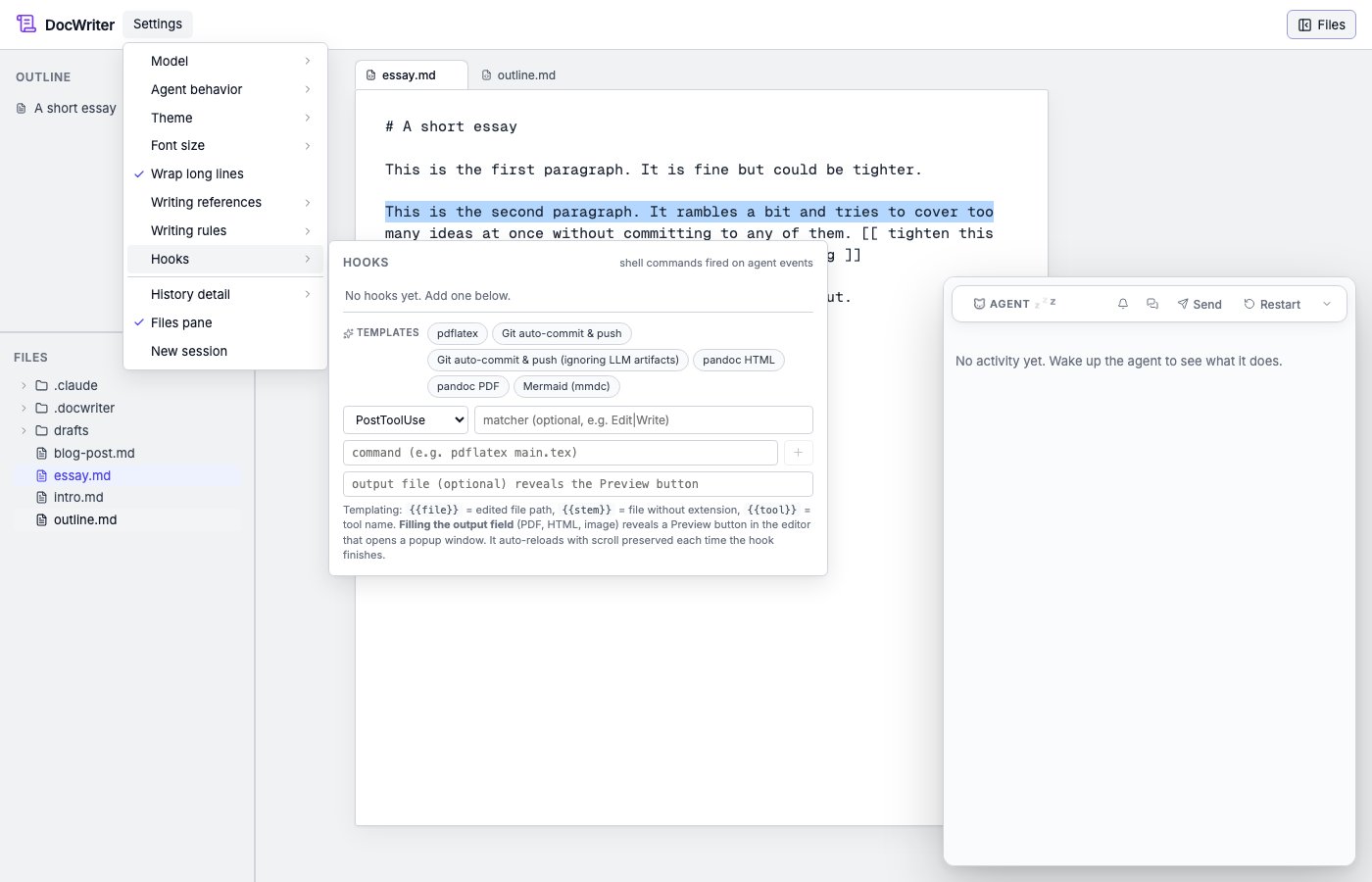
In the menu bar, open **Settings** and click **Hooks**. A panel opens
listing every hook in the workspace.
 ## Anatomy of a hook
Each hook has four fields:
| Field | What it does |
| ----------- | ------------------------------------------------------------------------------------------- |
| **Event** | When the command fires. `PostToolUse` (after a tool finishes) is the most common. |
| **Matcher** | A regex over the tool name. `Edit\|Write` matches file mutations. Empty matches every tool. |
| **Command** | The shell command. Supports `{{file}}`, `{{stem}}`, and `{{tool}}` placeholders. |
| **Output** | Optional path to the artifact this hook produces (PDF, HTML, etc.). Enables the preview UI. |
The command runs in the workspace root with your shell environment. Exit
code, stdout, and stderr are captured and surfaced in the history pane.
### Placeholders
* `{{file}}`. The file the triggering tool acted on (e.g. `essay.md`).
* `{{stem}}`. The file's name without its last extension (`essay`).
* `{{tool}}`. The tool name (`Edit`, `Write`, `Bash`, etc.).
`{{file}}` and `{{stem}}` are only set when the event has a file scope
(`PreToolUse`, `PostToolUse`). For events like `Stop` they are empty.
## Add a hook from a template
The hooks panel has a row of template chips for common toolchains:
* **pdflatex.** Rebuild `main.pdf` from `main.tex` on every edit, with
bibtex and synctex.
* **pandoc HTML.** Render the active markdown file as HTML.
* **pandoc PDF.** Render the active markdown file as PDF (via a TeX
engine).
* **Mermaid SVG.** Render a `.mmd` diagram file.
* **Git auto-commit & push on Stop.** Commit and push every agent turn.
Click a chip. The add-form below pre-fills with that template's fields.
Tweak anything you want (entry-file name, output path), then click `+`
to save.
## Add a hook manually
The add-form at the bottom of the panel has the same four fields. Fill
them in directly:
* Event: pick from the dropdown.
* Matcher: leave blank to match every tool, or use a regex like
`Edit|Write`.
* Command: the shell command to run.
* Output: optional path to the rendered artifact, if any.
Click `+` to save.
## Run a hook manually
Every saved hook has a **Run now** button. The command runs with the
currently active tab's path as `{{file}}`. The result streams to the
history pane just like an auto-fired hook.
Useful for first-time setup ("does the build actually work?") and for
re-running after editing a hook's command.
## Disable or delete
The toggle on each hook row enables or disables it without removing it.
The `×` button deletes the hook.
Disabled hooks stay in the panel and in `.docwriter/hooks.json` but do not
fire.
## The history pane
Every hook run appears as a card in the history pane:
* **Running** while the command is in flight.
* **Done** with exit code 0, plus stdout and stderr in expandable
sections.
* **Failed** with non-zero exit code, plus stderr.
If a hook fails, the error is visible in the same surface you use to
follow the agent. You do not need to switch to a terminal to debug.
## When hooks fire during an agent turn
A typical sequence when you accept an agent edit:
1. The agent calls `edit_doc` (a tool).
2. `PostToolUse` with matcher `Edit|Write` fires. Your `pdflatex` hook
runs.
3. The `output` file (e.g. `main.pdf`) is regenerated.
4. The preview window listens for this and reloads. See [Preview](/automation/preview).
When the agent turn ends:
1. `Stop` fires.
2. Your `git auto-commit` hook runs, committing and pushing the change.
## Where to go next
* [Hook events](/automation/events). The full table of when each event
fires.
* [Preview](/automation/preview). Wire a hook's `output` to a live
preview window.
* [Editing an Overleaf LaTeX project](/guides/overleaf). A worked
example using pdflatex and git-push hooks.
## Anatomy of a hook
Each hook has four fields:
| Field | What it does |
| ----------- | ------------------------------------------------------------------------------------------- |
| **Event** | When the command fires. `PostToolUse` (after a tool finishes) is the most common. |
| **Matcher** | A regex over the tool name. `Edit\|Write` matches file mutations. Empty matches every tool. |
| **Command** | The shell command. Supports `{{file}}`, `{{stem}}`, and `{{tool}}` placeholders. |
| **Output** | Optional path to the artifact this hook produces (PDF, HTML, etc.). Enables the preview UI. |
The command runs in the workspace root with your shell environment. Exit
code, stdout, and stderr are captured and surfaced in the history pane.
### Placeholders
* `{{file}}`. The file the triggering tool acted on (e.g. `essay.md`).
* `{{stem}}`. The file's name without its last extension (`essay`).
* `{{tool}}`. The tool name (`Edit`, `Write`, `Bash`, etc.).
`{{file}}` and `{{stem}}` are only set when the event has a file scope
(`PreToolUse`, `PostToolUse`). For events like `Stop` they are empty.
## Add a hook from a template
The hooks panel has a row of template chips for common toolchains:
* **pdflatex.** Rebuild `main.pdf` from `main.tex` on every edit, with
bibtex and synctex.
* **pandoc HTML.** Render the active markdown file as HTML.
* **pandoc PDF.** Render the active markdown file as PDF (via a TeX
engine).
* **Mermaid SVG.** Render a `.mmd` diagram file.
* **Git auto-commit & push on Stop.** Commit and push every agent turn.
Click a chip. The add-form below pre-fills with that template's fields.
Tweak anything you want (entry-file name, output path), then click `+`
to save.
## Add a hook manually
The add-form at the bottom of the panel has the same four fields. Fill
them in directly:
* Event: pick from the dropdown.
* Matcher: leave blank to match every tool, or use a regex like
`Edit|Write`.
* Command: the shell command to run.
* Output: optional path to the rendered artifact, if any.
Click `+` to save.
## Run a hook manually
Every saved hook has a **Run now** button. The command runs with the
currently active tab's path as `{{file}}`. The result streams to the
history pane just like an auto-fired hook.
Useful for first-time setup ("does the build actually work?") and for
re-running after editing a hook's command.
## Disable or delete
The toggle on each hook row enables or disables it without removing it.
The `×` button deletes the hook.
Disabled hooks stay in the panel and in `.docwriter/hooks.json` but do not
fire.
## The history pane
Every hook run appears as a card in the history pane:
* **Running** while the command is in flight.
* **Done** with exit code 0, plus stdout and stderr in expandable
sections.
* **Failed** with non-zero exit code, plus stderr.
If a hook fails, the error is visible in the same surface you use to
follow the agent. You do not need to switch to a terminal to debug.
## When hooks fire during an agent turn
A typical sequence when you accept an agent edit:
1. The agent calls `edit_doc` (a tool).
2. `PostToolUse` with matcher `Edit|Write` fires. Your `pdflatex` hook
runs.
3. The `output` file (e.g. `main.pdf`) is regenerated.
4. The preview window listens for this and reloads. See [Preview](/automation/preview).
When the agent turn ends:
1. `Stop` fires.
2. Your `git auto-commit` hook runs, committing and pushing the change.
## Where to go next
* [Hook events](/automation/events). The full table of when each event
fires.
* [Preview](/automation/preview). Wire a hook's `output` to a live
preview window.
* [Editing an Overleaf LaTeX project](/guides/overleaf). A worked
example using pdflatex and git-push hooks.