> ## Documentation Index
> Fetch the complete documentation index at: https://docs.docwriter.org/llms.txt
> Use this file to discover all available pages before exploring further.
# Find and appearance
> Find text and adjust the editor layout.
## Find text
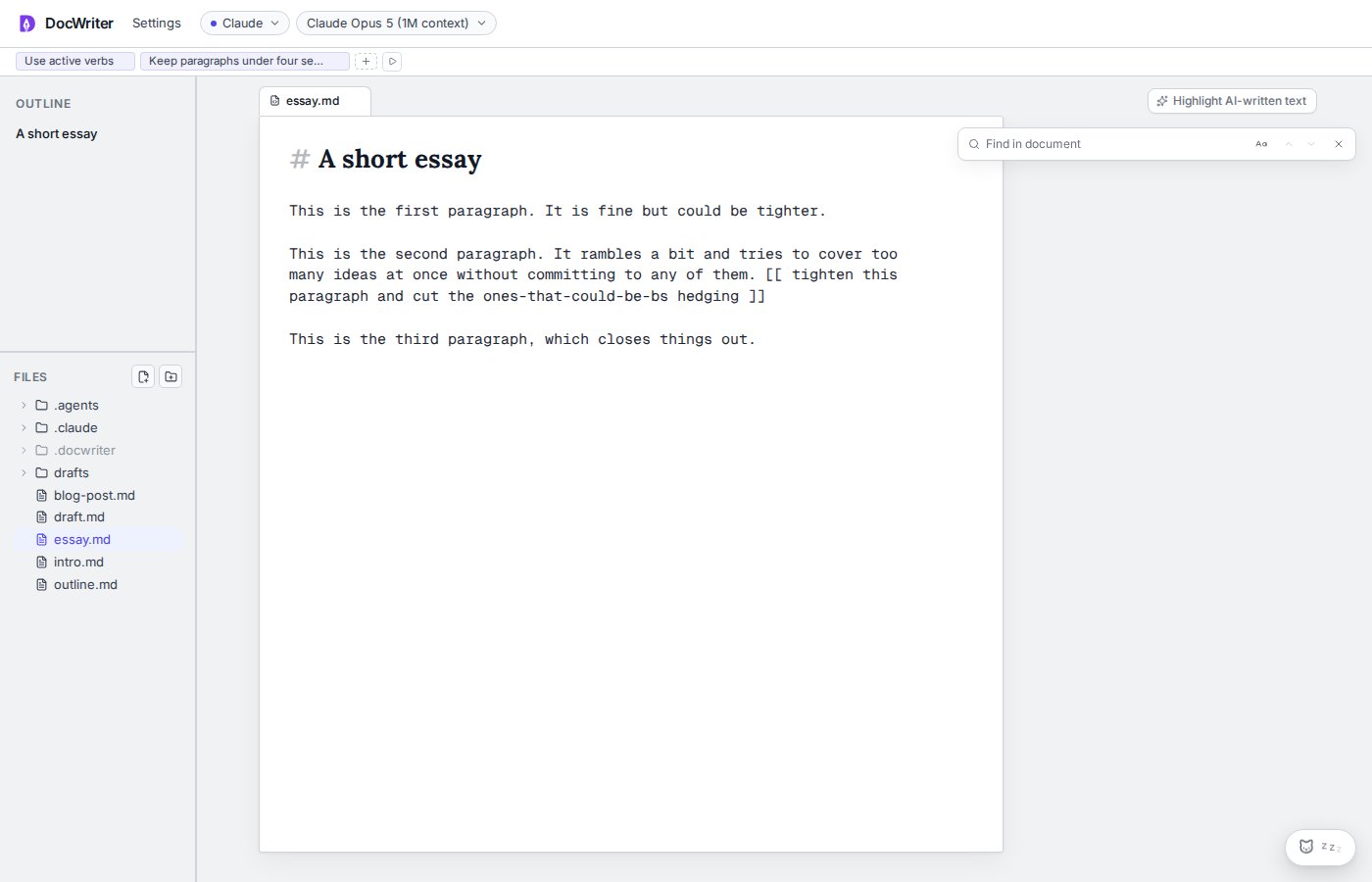
Press **Command or Control and F** to open the document find bar. Type a query, press **Enter** for the next match, and press **Shift and Enter** for the previous match.
Use **Match case** when capitalization should matter. The counter shows the current match and total matches. Press **Escape** to close the bar.
Find searches the active tab only.
 ## Use the outline
The outline lists Markdown headings from the active file. Click a heading to move to it. Files without Markdown headings have an empty outline.
## Change appearance
Open **Settings** to choose Light, Dark, Solarized Light, Solarized Dark, or Monokai. You can also change the editor font size, wrap long lines, and show line numbers.
DocWriter uses Lora for prose, Inter for the interface, and Geist Mono for code.
## Resize the workspace
Drag the sidebar edge, the file tree divider, or the split preview divider to resize each region. **Settings**, then **Sidebar** hides the whole left sidebar. **Settings**, then **Files pane** hides only the file tree beneath the outline.
The editor paper keeps a readable maximum width. The comment gutter stays beside it when space allows. At narrower widths, the split preview moves below the source, and the floating agent dock can collapse to a pill.
## Use the outline
The outline lists Markdown headings from the active file. Click a heading to move to it. Files without Markdown headings have an empty outline.
## Change appearance
Open **Settings** to choose Light, Dark, Solarized Light, Solarized Dark, or Monokai. You can also change the editor font size, wrap long lines, and show line numbers.
DocWriter uses Lora for prose, Inter for the interface, and Geist Mono for code.
## Resize the workspace
Drag the sidebar edge, the file tree divider, or the split preview divider to resize each region. **Settings**, then **Sidebar** hides the whole left sidebar. **Settings**, then **Files pane** hides only the file tree beneath the outline.
The editor paper keeps a readable maximum width. The comment gutter stays beside it when space allows. At narrower widths, the split preview moves below the source, and the floating agent dock can collapse to a pill.