

Sending feedback
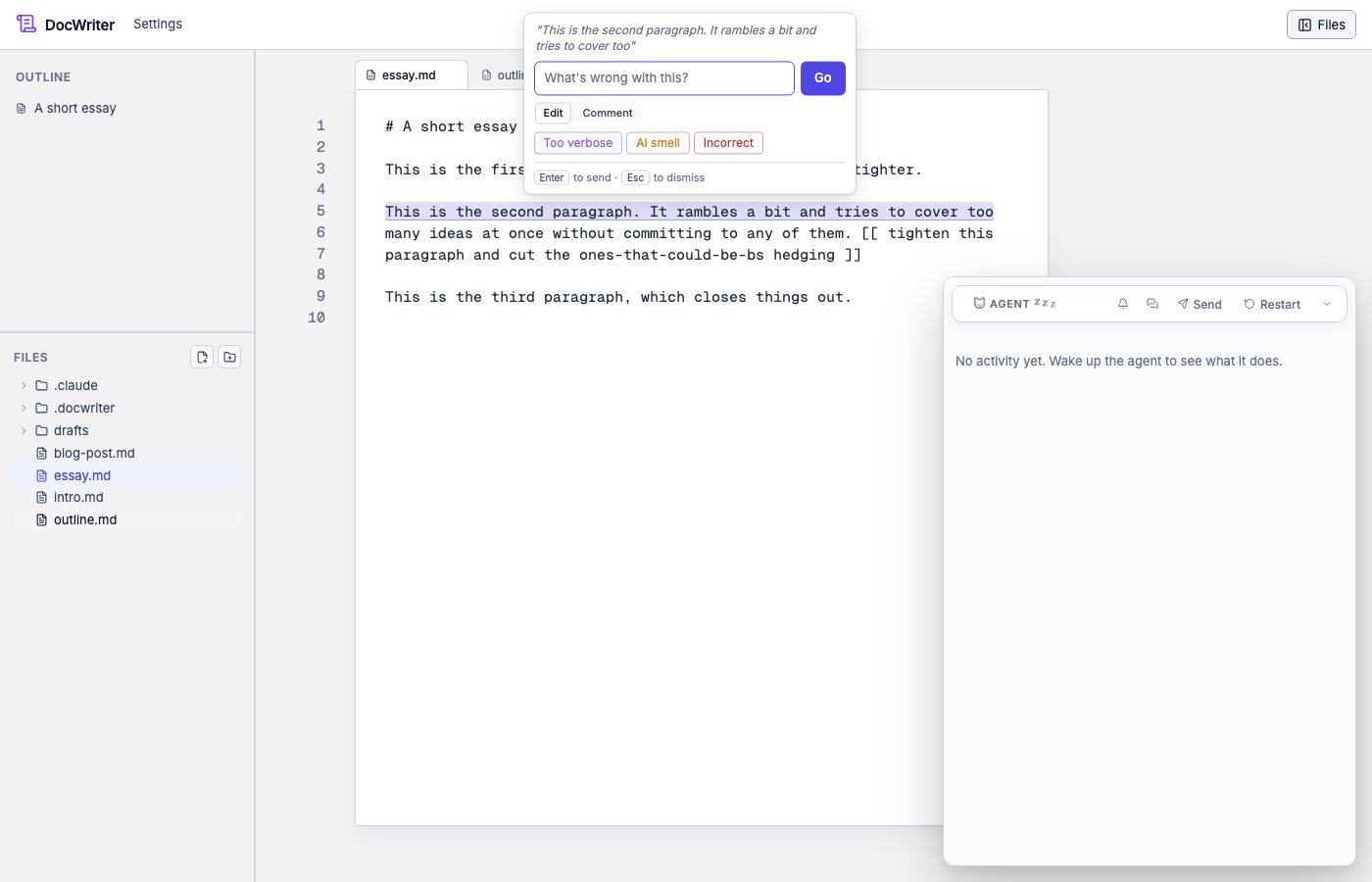
Type what is wrong and press Enter, or click Go. The agent receives the selected passage and your feedback, then starts a comment thread on the passage. The agent responds on that thread in the next turn. Your message is then available as a quick action for later use.Direct edit and plan first
You choose how the agent responds with the two chips under the input.- Direct edit. The agent proposes its edit right away. The edit is shown as a pending review on the thread, where you can accept or reject it.
- Plan first. The agent first explains the problem and its planned change. It then proposes an edit on the same thread, so you can read the explanation before you decide.
Quick actions
Use the quick actions under the mode choices when you want to send common feedback with one click.- Too verbose and Incorrect give the agent the selected passage and the label you clicked. The agent follows the mode you chose.
- AI smell always asks the agent to explain its reasoning first. The agent explains why it thinks a machine wrote the passage. After the explanation, it proposes a fix.
Freeze for agent
Click Freeze for agent to prevent the agent from editing the selected text. The selected text is locked until you unlock it. Read Writing rules for details.Keyboard behavior
- Press Esc to close the popup without clearing your selection. You can then type, copy, or delete in the document without seeing the popup again for that selection. When you select a different range, you see the popup again.
- Press Backspace or Delete while the input is empty to delete the selected text. Use either key when you decide to cut the passage instead of commenting on it.
- You can also select text with the keyboard. Hold Shift while you use
the arrow keys, or select everything with
Cmd/Ctrl+A. When you release the modifier key, you can type in the focused input.
Where to go next
- Read Comments to learn how to reply to or resolve the thread that you started with your feedback.
- Read Reviewing edits to learn how you can accept or reject an edit from the agent.
- Read Writing rules to turn repeated feedback into a rule for the agent.