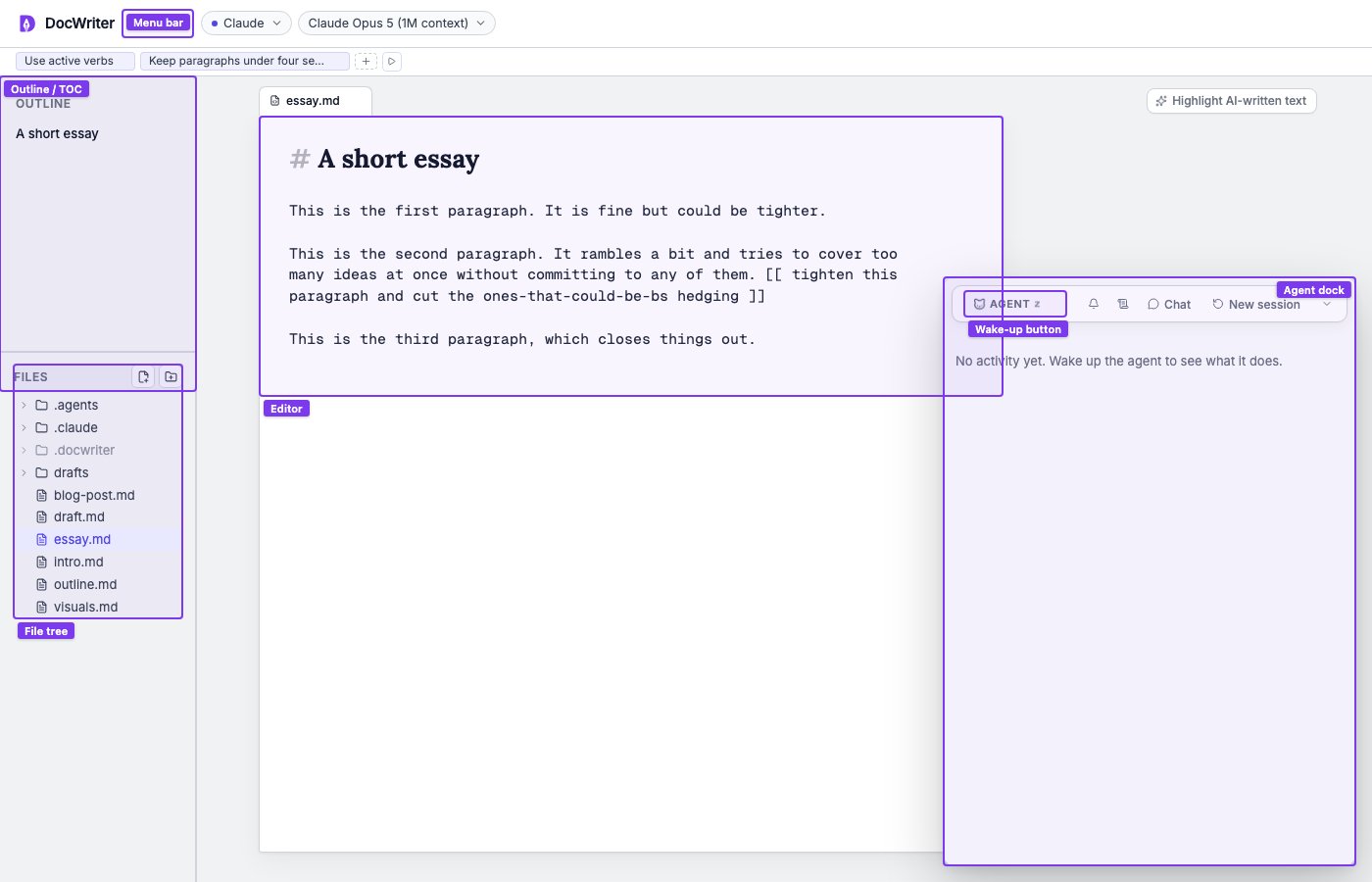
Menu bar (top)
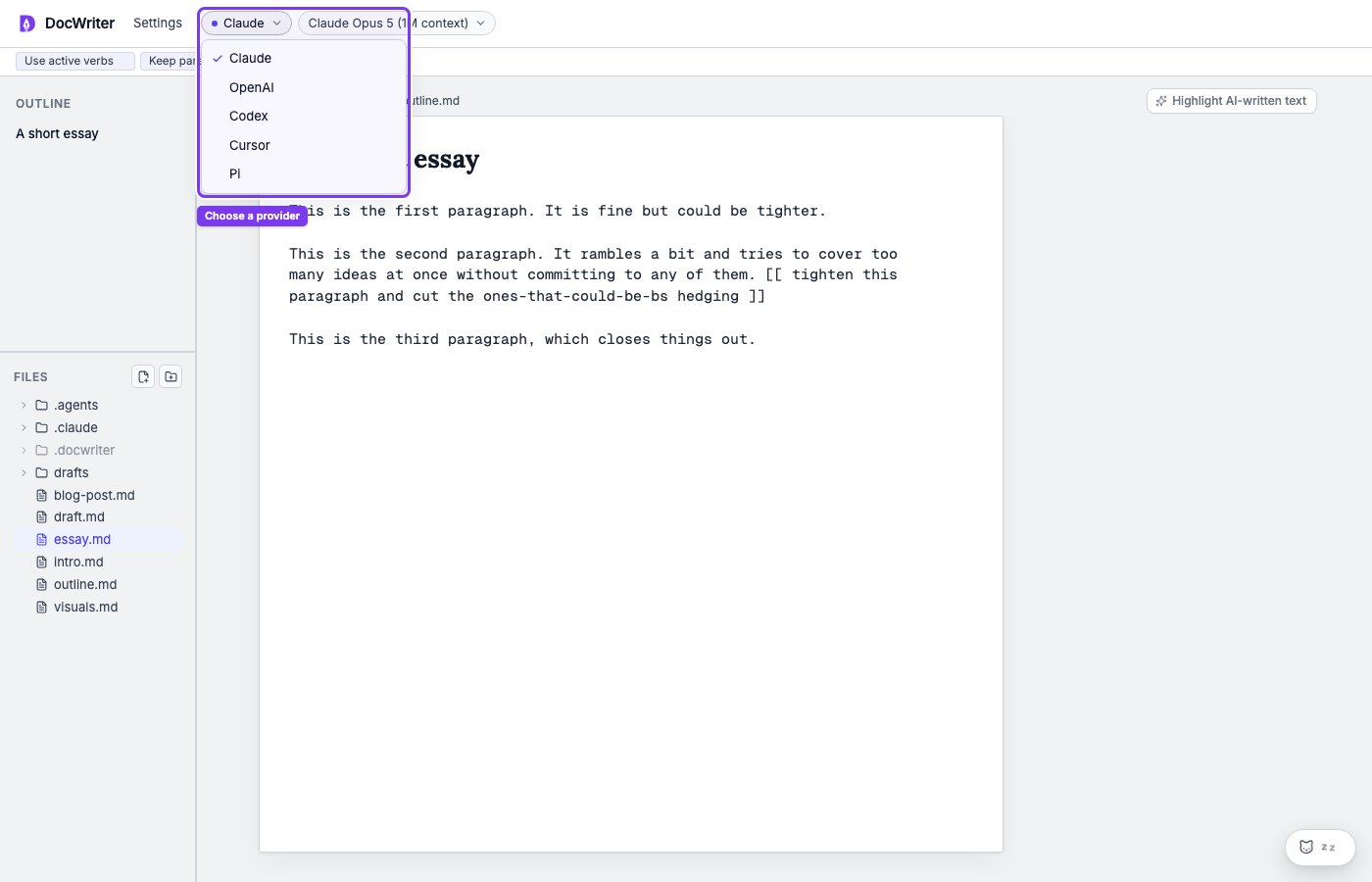
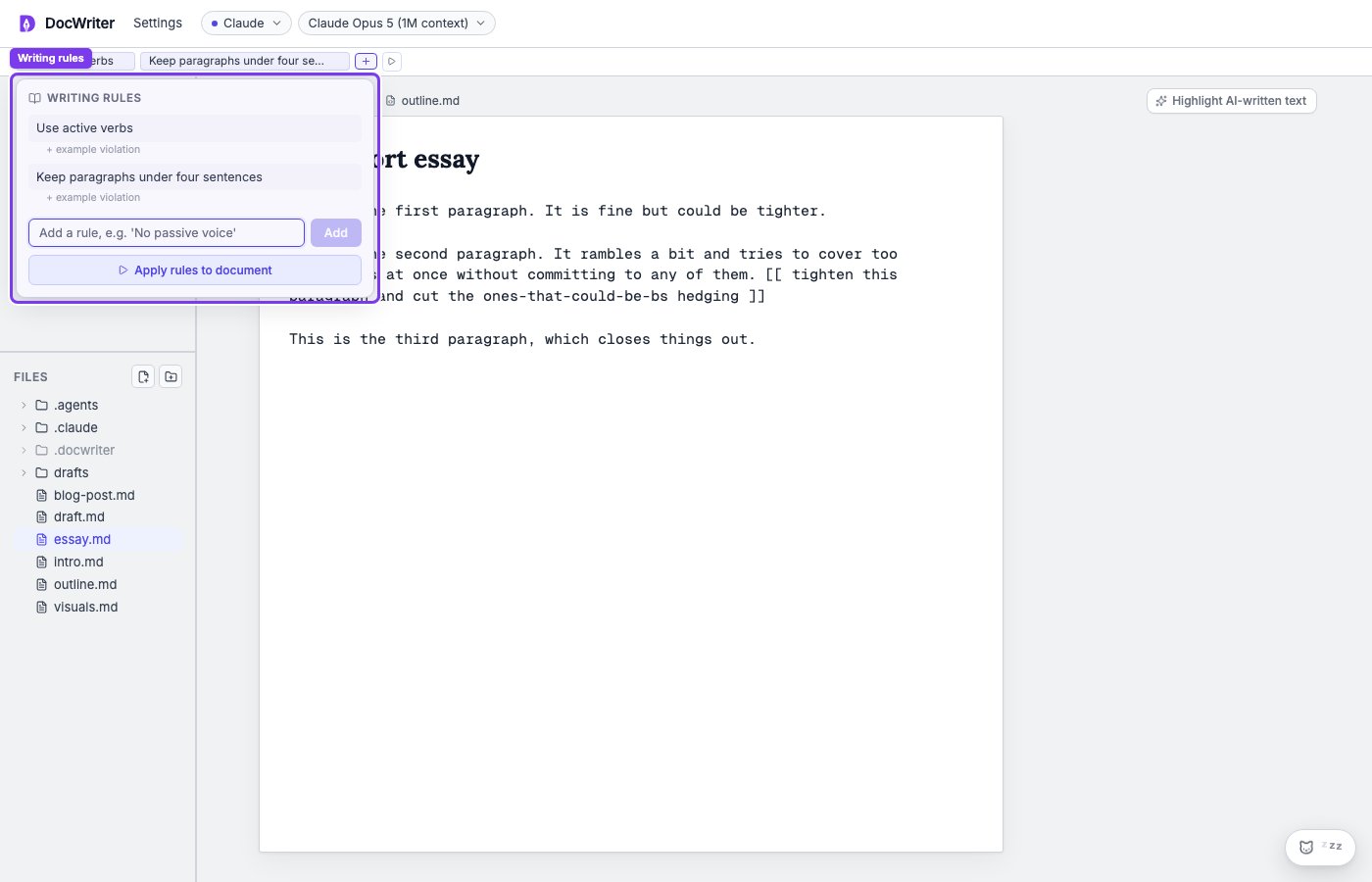
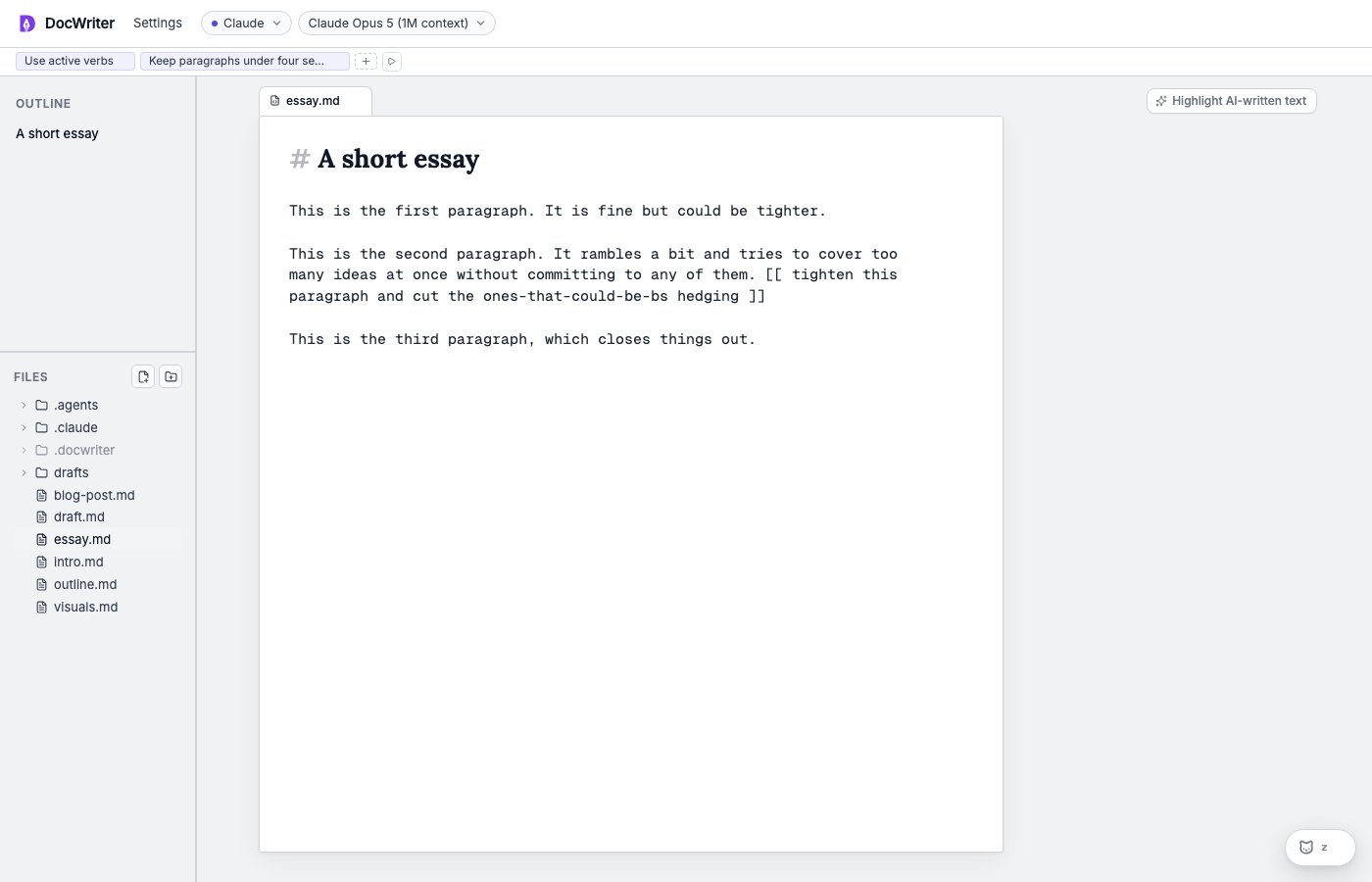
The menu bar runs along the top of the window. It groups commands by category (File, Edit, View, Settings), and exposes a few rich panels under the Settings menu:- Writing rules. Persistent style preferences the agent follows. See Writing rules.
- Writing references. Samples to match in voice. See Writing references.
- Hooks. Shell commands that fire on agent events. See Hooks.
Left pane
The left pane has two stacked sections.Outline / TOC (top)
Headings from the active tab, generated on the fly. Click a heading to jump to it in the editor.File tree (bottom)
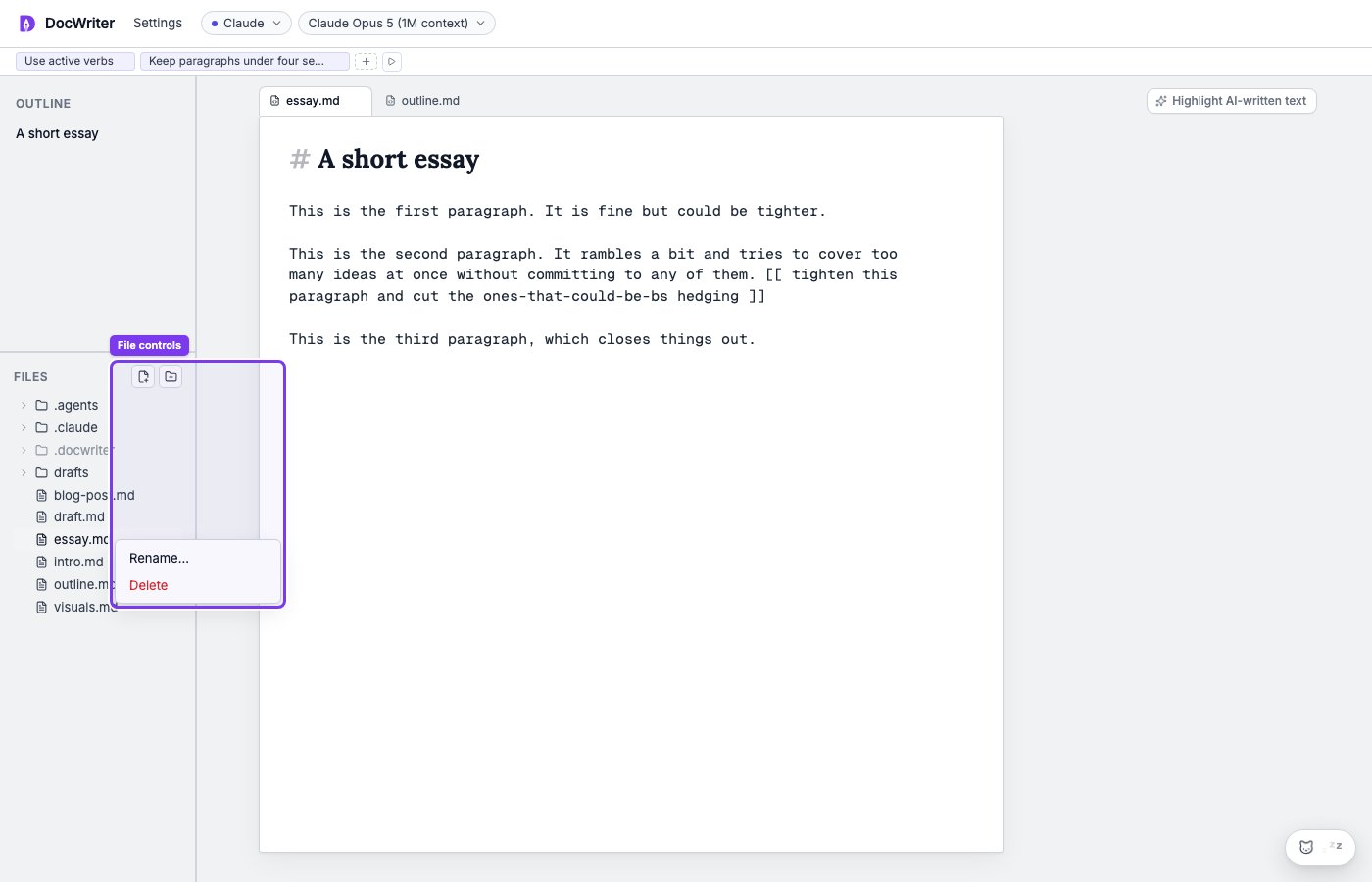
Every file in your workspace folder. Click any file to open it as a tab in the editor. There is no special “supported file types” list. Any text file opens. Files that look binary (images, PDFs) open in the preview window instead. You can create files and folders inline (right-click or use the+
buttons), rename, and delete. Folders are collapsible.
Center pane
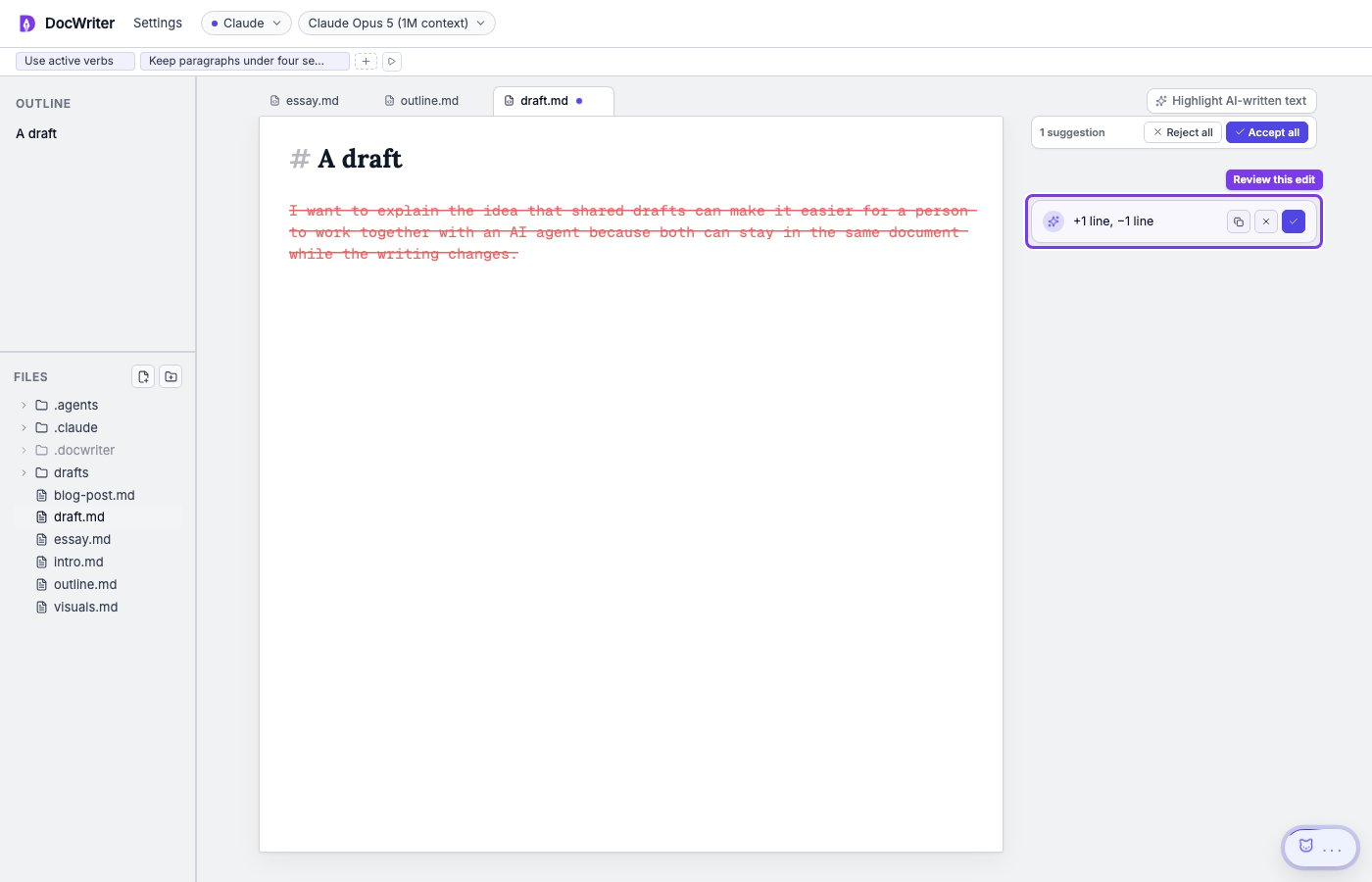
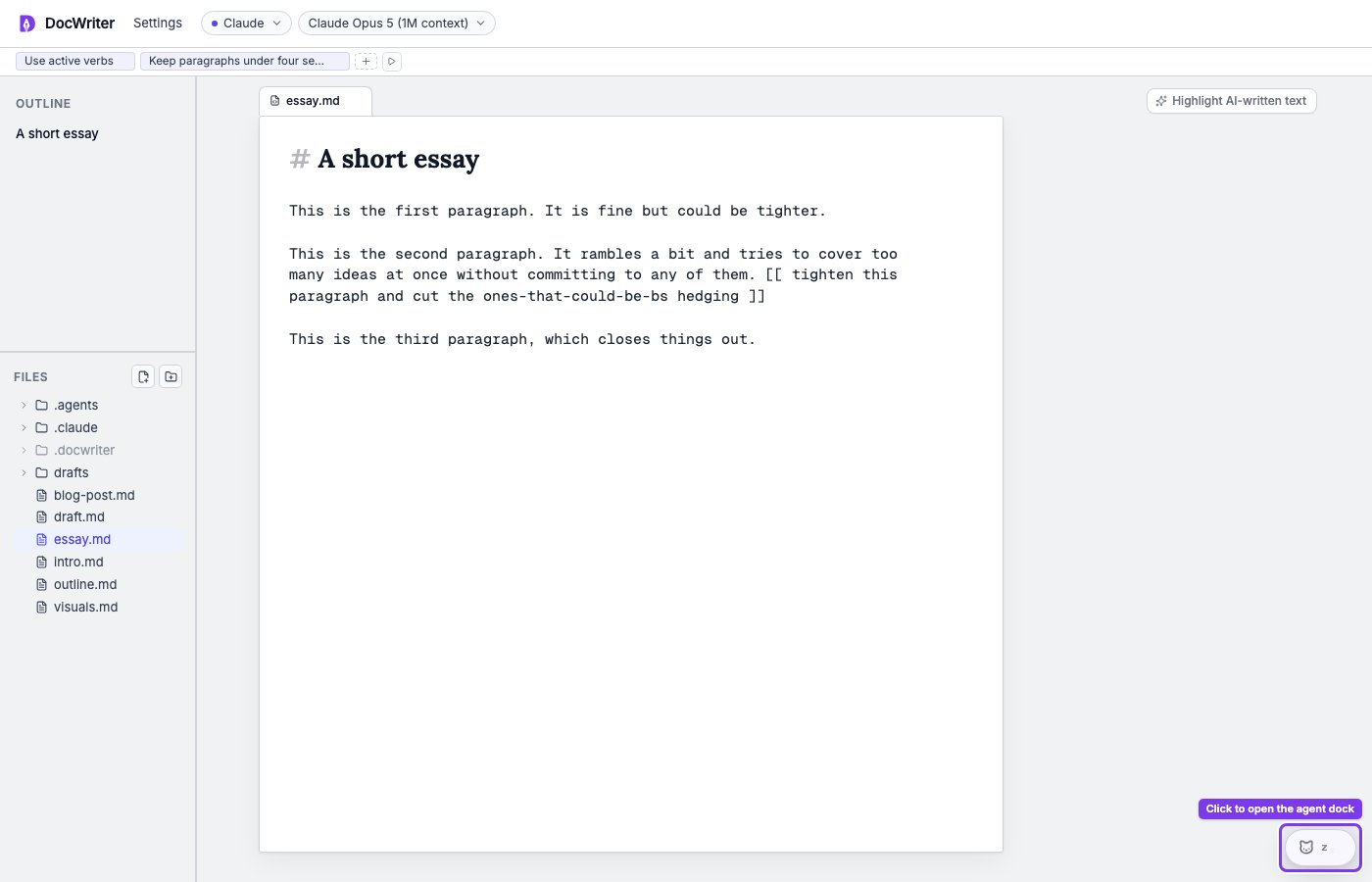
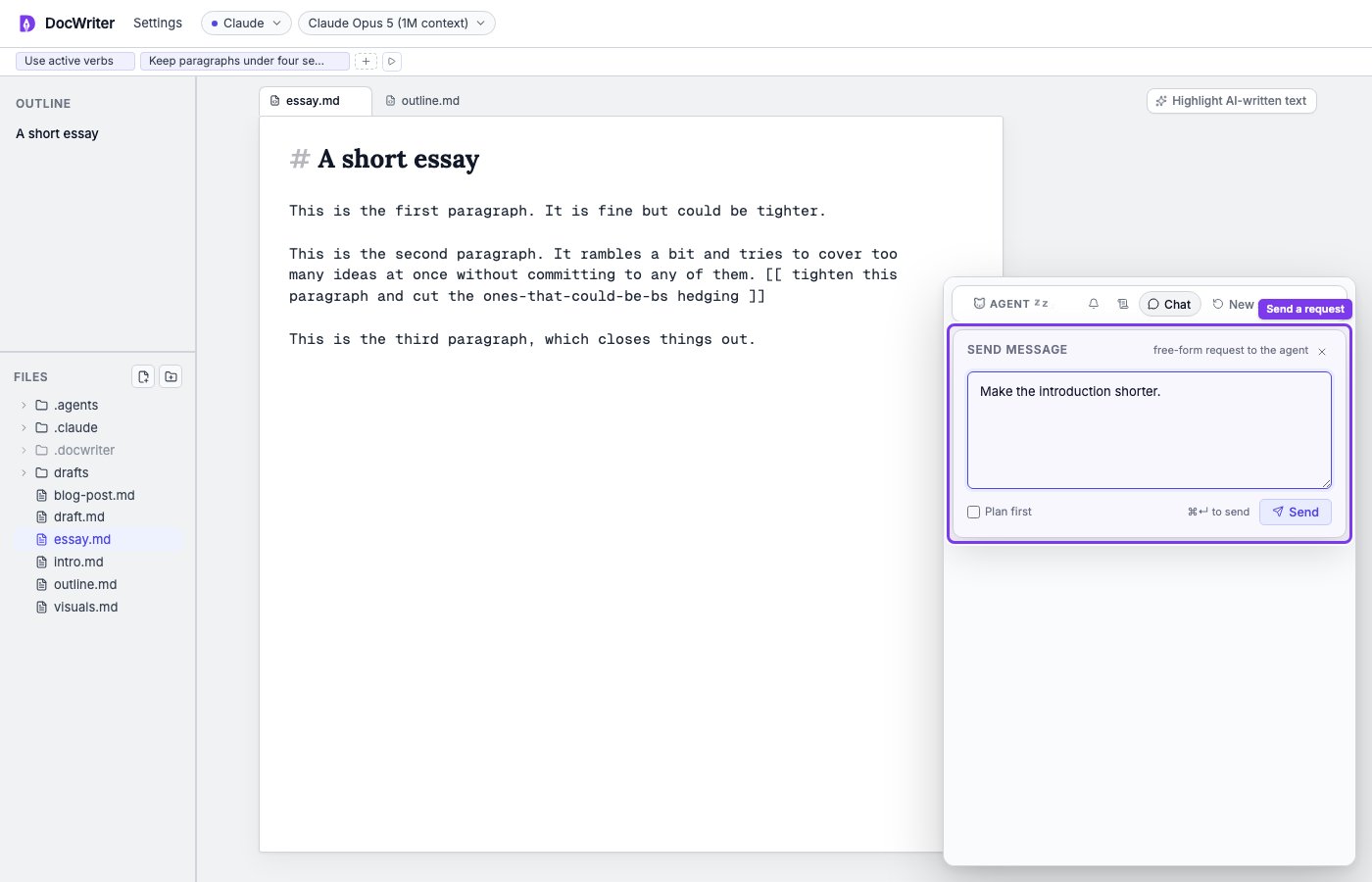
The editor. This is a Tiptap instance over plain text. What you see is the file contents with light formatting (headings, lists, links). A few floating controls sit on top of the editor:- Agent dock (top-right). A Send button. Click it to open a chat popover and type a prompt for the agent. (You don’t have to click for the agent to run. It auto-wakes three seconds after you stop typing. Send is for explicit prompts that don’t anchor to a spot in the doc.) See Steering the agent.
- Preview button (top-right, when a hook produces an output). Opens
the rendered artifact (PDF, HTML, image) in a popup window. The button
is hidden when no hook with an
outputfield matches the active tab. See Live preview. - Find bar (top-right when open).
Cmd/Ctrl+Fopens a search bar scoped to the active tab.
Right pane
The history pane. Toggle with the button on the right side of the menu bar. The pane has two sections. Top — activity log. At the top is the agent pill, a small mascot icon. The mascot animates while the agent is running. Clicking the pill wakes the agent on demand. Below the pill, every interaction the agent has with your workspace is logged as a card:- Tool calls (
read_doc,edit_doc,write_doc, shell commands). - Hook runs (the shell command, exit code, stdout, stderr, duration).
- Plain assistant text (when the agent says something instead of editing).
- Comments the agent posts.
- Errors.
Tabs
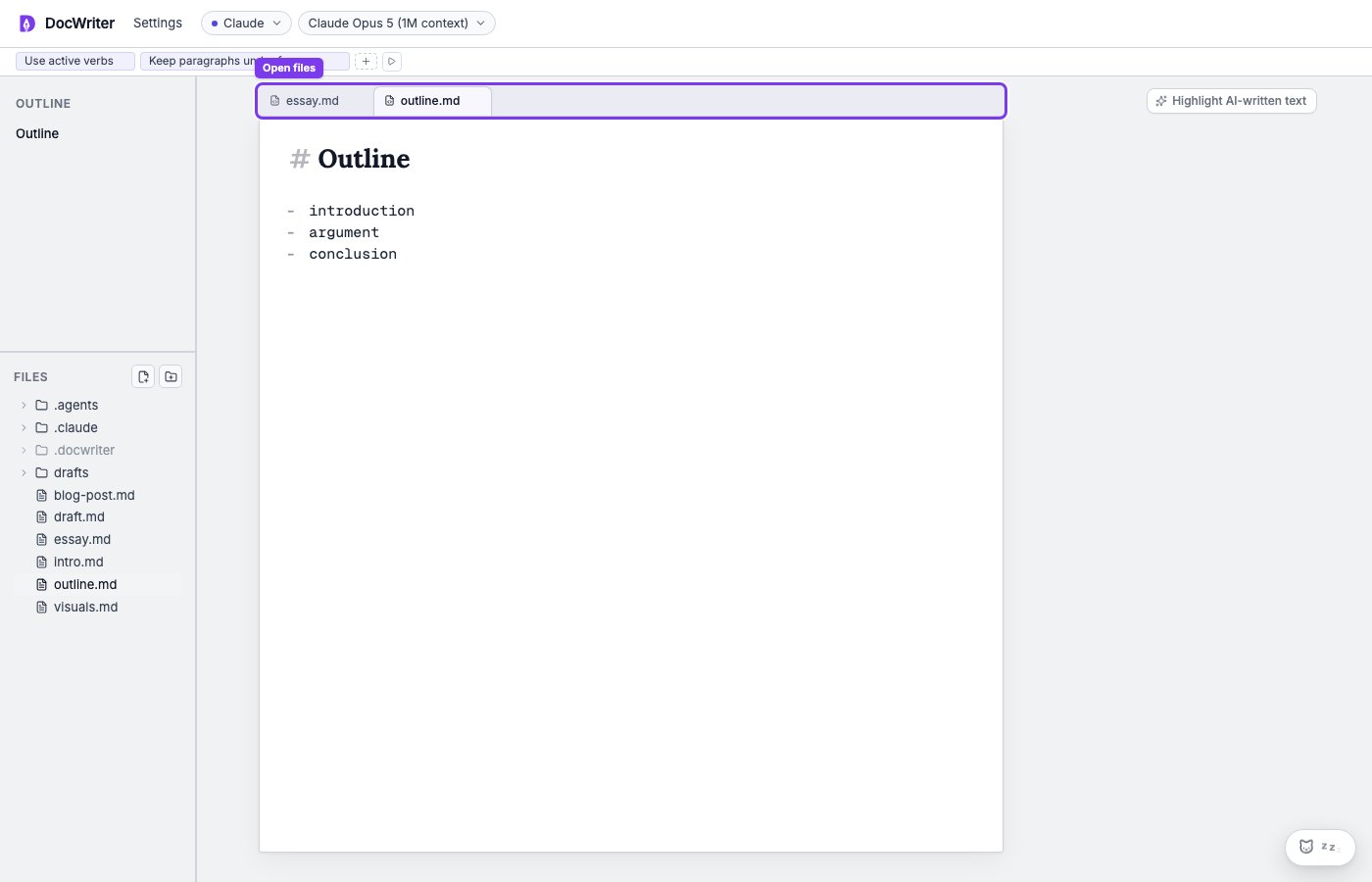
Above the editor, open files appear as tabs. Click to switch; middle-click or the× to close. Each tab keeps its own editing state, including
undo/redo history, scroll position, and pending agent edits.
What’s next
- Editor. The editing surface itself in detail.
- Tabs. How DocWriter handles multiple open files.
- Steering the agent. How to drive the agent dock.