

.tex, .txt, .bib, etc.), the editor shows source verbatim
without any rendering.
Line numbers
Line numbers appear in a gutter on the left. They reflect the source file, not the rendered prose, so for a.md file with a heading and a
paragraph the heading is one line and the paragraph starts on line
two regardless of how it wraps in the viewport. Useful for talking to
the agent about specific lines (“rewrite line 14”), useful for
LaTeX, useful when reading the source of anything technical.
Wrap long lines
By default the editor wraps long lines at the viewport edge. The Settings menu has a Wrap long lines toggle — uncheck it to make long lines overflow horizontally (useful for code files where column position matters).Font size
Settings, Font size sets the editor font size. The chosen size persists across sessions.Find bar
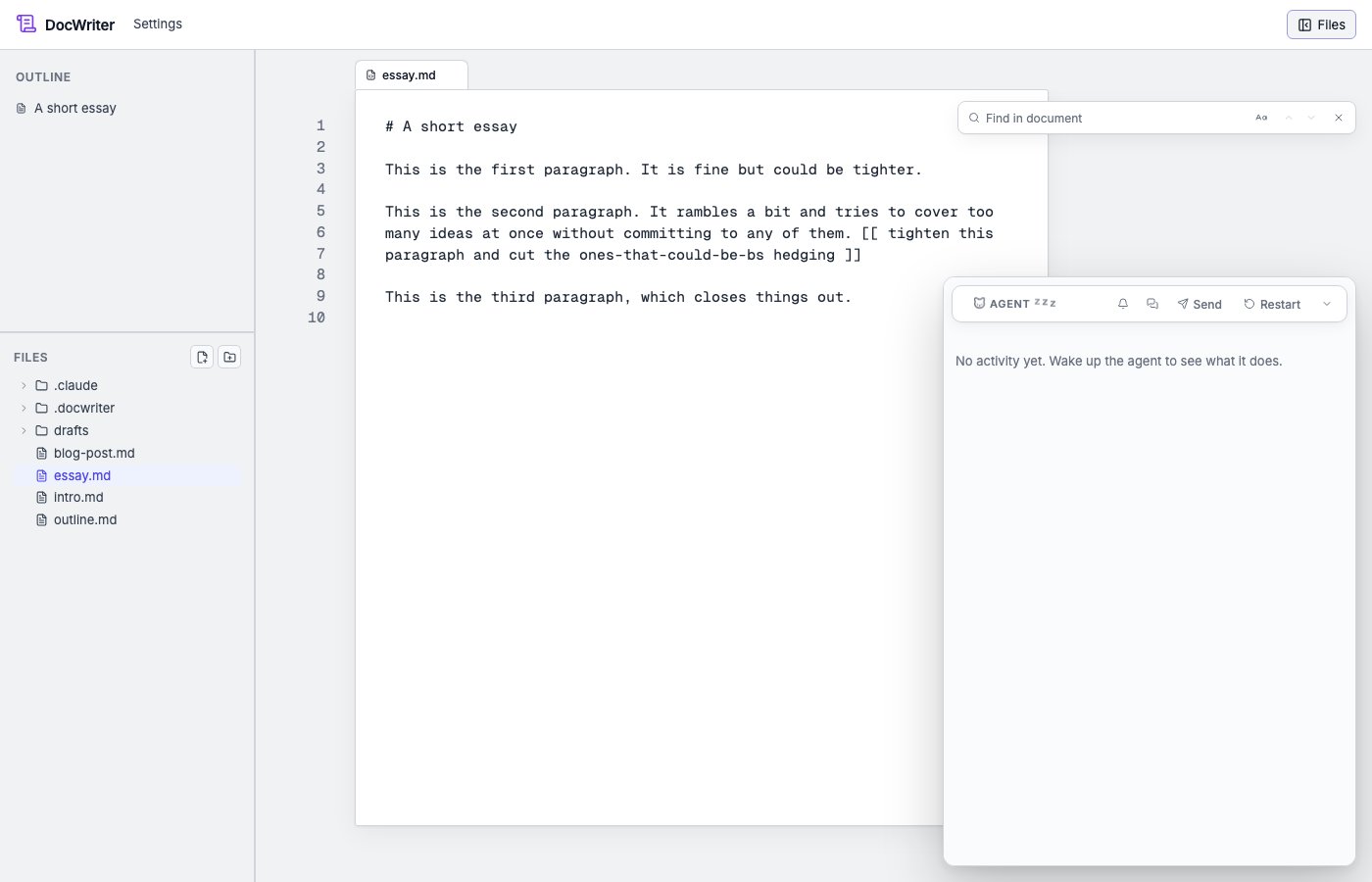
Cmd/Ctrl+F opens an in-document find bar at the top of the editor.
Type to search; matches highlight in the prose. Enter jumps to the
next match, Shift+Enter steps back, Esc closes the bar. The
search is scoped to the active tab.
The find is intentionally separate from the browser’s Cmd/Ctrl+F,
which would search the page chrome and outline pane too. DocWriter
intercepts the keystroke so you always get an in-document search.
Outline / table of contents
Headings in the active tab populate the outline pane on the left. Click a heading to scroll the editor to it. The TOC updates live as you type. Pending agent reviews appear in the right pane (the Pending agent edits section), not here. See Reviewing edits.Inline feedback popup
Selecting any text (drag, double-click for a word, triple-click for a paragraph, or Shift+arrow) opens the inline feedback popup anchored to the selection. The popup has an auto-focused text input, mode chips (Auto / Edit / Discuss), and one-click pills for common feedbacks plus your recently-typed ones.Floating Preview button
When a hook has anoutput field that matches
the active tab (e.g., a pdflatex hook whose output is main.pdf
and the active tab is main.tex), a Preview button appears at
the top-right of the editor. Clicking it opens the rendered artifact
in a popup window. See Live preview.