

The pending review card
A card appears in the outline pane (lower-left) titled “Pending edit”. It shows:- The file the edit applies to (only relevant when several tabs have pending edits).
- A short summary of the change.
- Accept and Reject buttons.
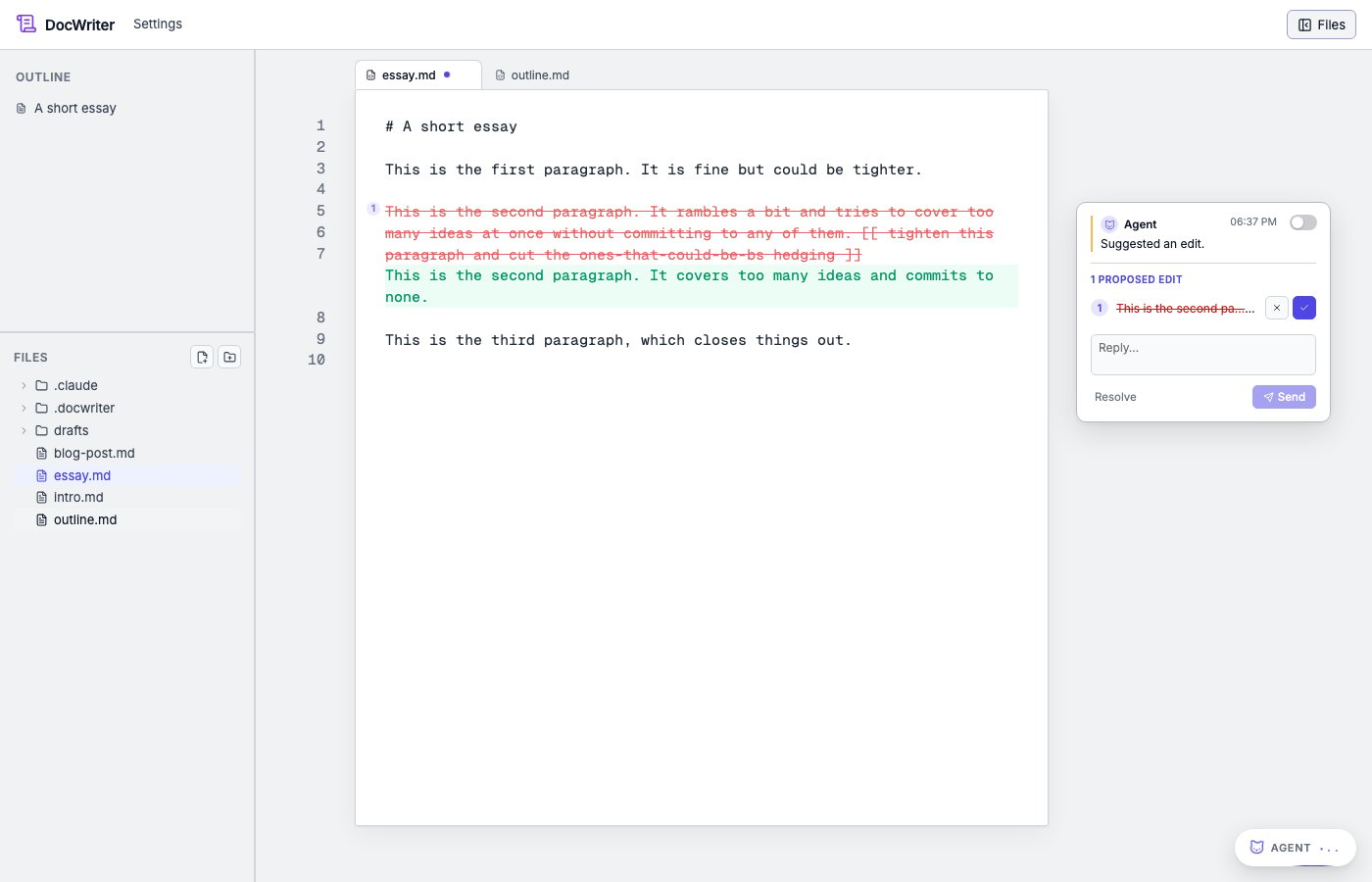
Accept
Click Accept. The highlight clears and the new text becomes part of the document. Any hooks that match theEdit/Write tool name fire (see
Hooks). This is how a “rebuild PDF on every edit”
hook reacts to your accepting an agent change.
Accept is undoable. Cmd/Ctrl+Z reverts the accepted edit. Because agent
edits and your own typing are tagged with different origins, undoing an
accepted edit does not affect any unrelated typing you did at the same
time.
Reject
Click Reject. The highlight clears and the document returns to its pre-edit state. Reject is local-first: it does not need a server round trip. The outline card disappears immediately. If you reject by mistake,Cmd/Ctrl+Z
restores the pending review.
Multiple pending rounds
The agent can produce several edits in a single turn (for example, when asked to “tighten every section”). Each becomes its own card in the comment gutter and its own highlight in the document. Each card has its own Accept and Reject controls. When the active tab has any pending suggestions, the comment gutter shows an Accept all / Reject all bar at the top so you can clear the whole stack in one click. A reviewer may propose a small edit during a critique pass. You see the reviewer’s name, mascot, and color on the edit card. You accept or reject the edit through the same controls as any other agent edit.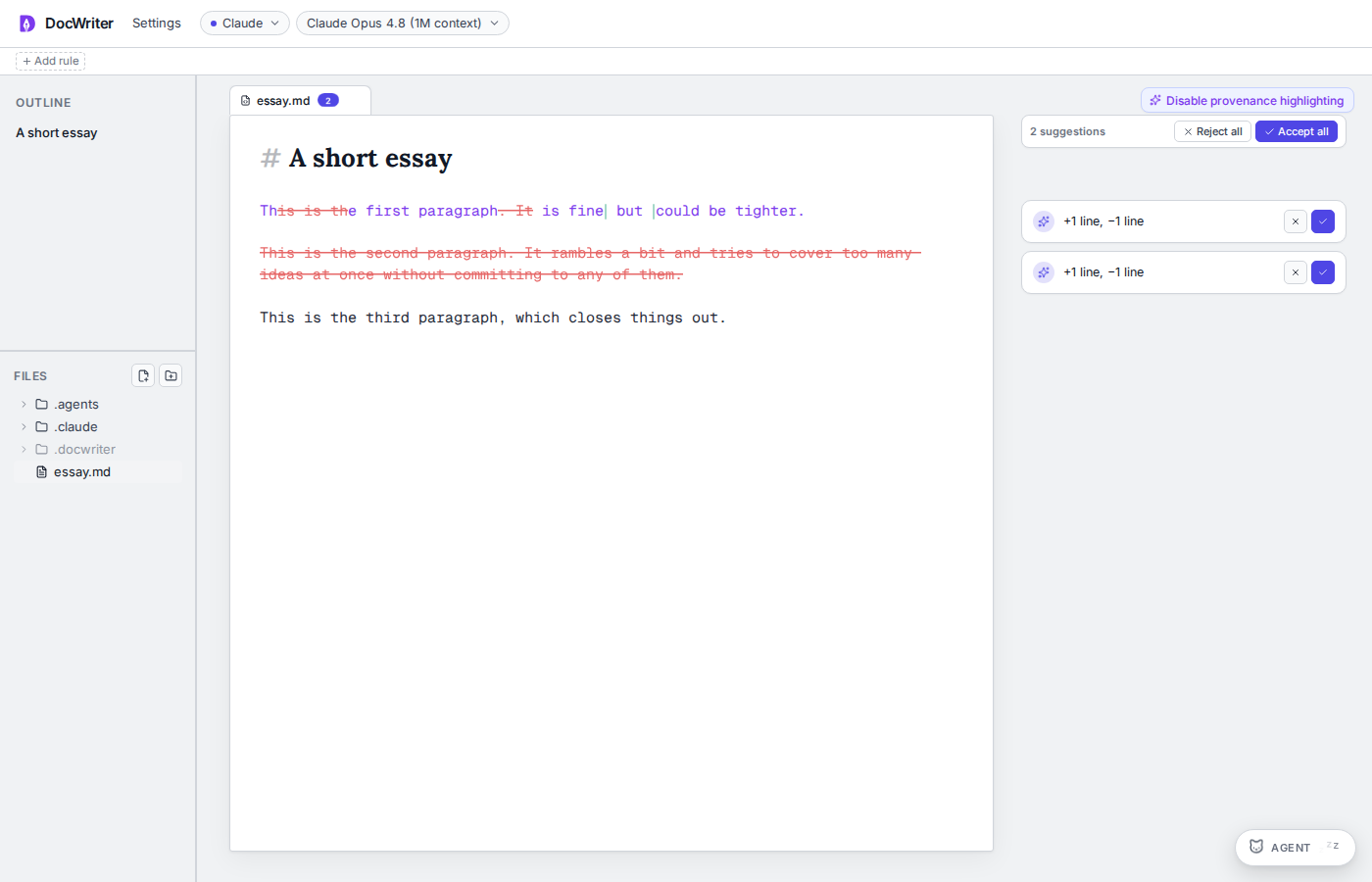
Copying proposed text
You can copy text from a proposal without accepting the edit. Drag across the green text and pressCmd/Ctrl+C, or hover over a proposed
line and use its copy button. You can also use the copy button on each
edit row in the thread. Copy the text when you want to use only part
of the proposal.
Seeing which text the agent wrote
Click Highlight AI-written text in the top right of the editor to see which words came from accepted agent edits. You see only the words that the agent added, while your unchanged words are not marked. When you type over a marked word, the word is no longer marked. Turning the highlighting on or off does not change the document. You keep the same highlighting choice after you reload the page.Typing while a review is open
You can type normally while a pending review is open. Your edits and the agent’s pending edit do not conflict. They merge through the editor’s collaborative data model. When you accept the agent edit, your concurrent typing is preserved. If your typing happens to land inside a region the agent is editing, the visual highlight may shift slightly so both sets of changes remain visible.Track changes off
If you turn off Track changes in the Agent behavior panel (under Settings; see Steering the agent), agent edits land directly in the document with no pending review step. Undo still works to revert them, and they are still grouped in the undo stack as agent-origin (separate from your own typing). Use this when you want the agent to operate more like a quick autocomplete than a reviewer.Where to go next
- Steering the agent. Prompts, model selection, autonomy.
- Comments. When the agent leaves feedback in the margin instead of proposing an edit.
- Hooks. What fires when you accept an edit.