A writing rule is a short, persistent instruction the agent applies to every turn. Rules live alongside the workspace in .docwriter/ and get injected into the agent’s prompt automatically.

Adding a rule

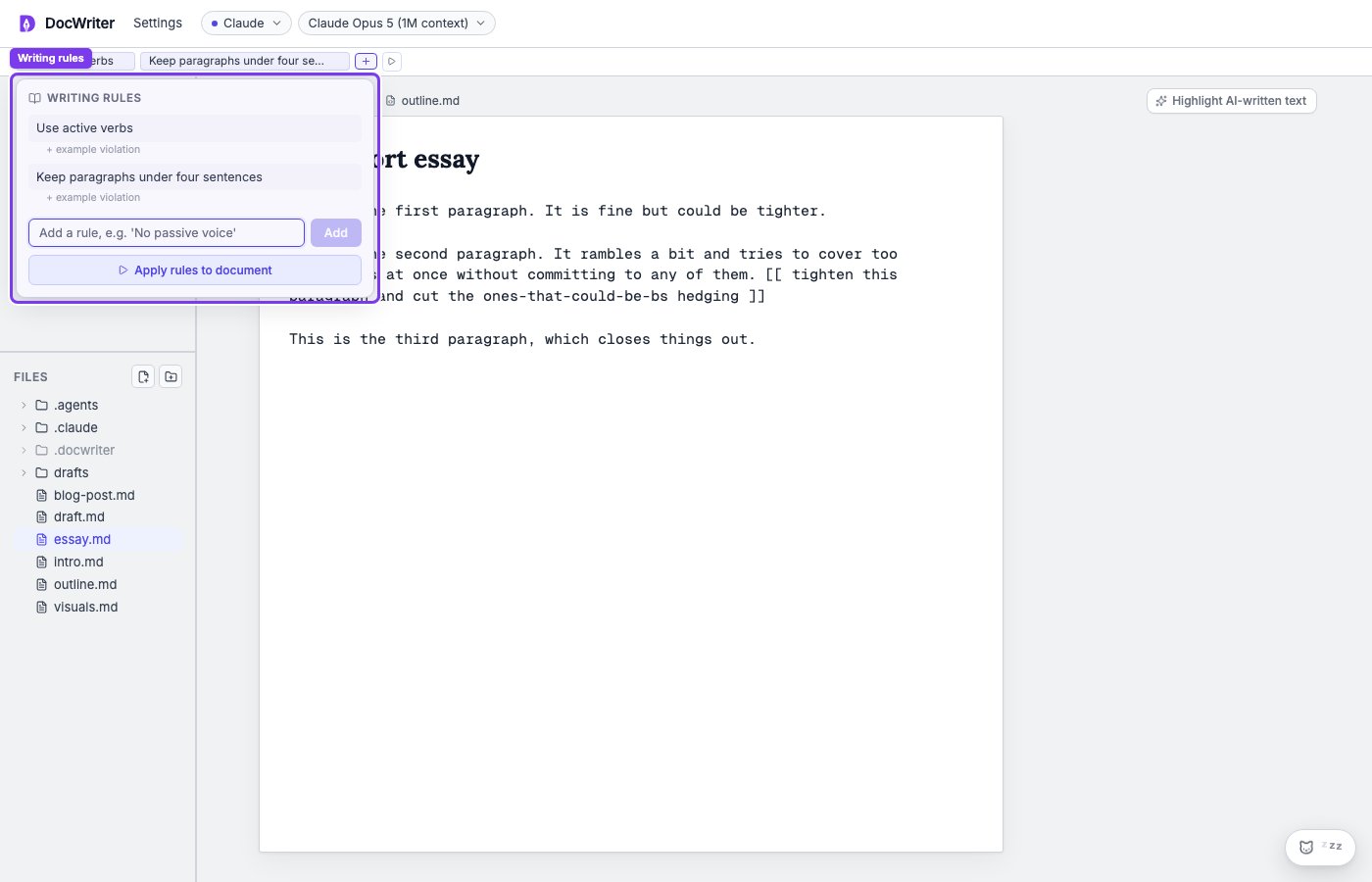
In the menu bar, open Settings and click Writing rules. A panel opens listing every rule in the workspace. Type a new rule into the input at the bottom and press Enter.
The writing rules panel open under Settings

Examples

  • “Avoid passive voice.”
  • “Use footnotes for parenthetical asides, not em dashes.”
  • “Headings use sentence case, not title case.”
  • “When citing a paper, use APA format.”
  • “Never start a sentence with ‘Furthermore’ or ‘Moreover.’”
Rules are most useful when they’re short, specific, and apply broadly across your writing. A rule like “rewrite paragraph 3” doesn’t belong as a rule (use an inline directive for that instead).

Agent-proposed rules

The agent can also propose rules. If you mention a preference incidentally (“I always want footnotes for sources”), the agent may suggest making it a rule. A proposal card appears in the outline pane on the left; accept to save the rule, reject to dismiss. This routes through the propose_rule MCP tool. See How it works for the architectural details if you’re curious.

Violation examples

You can give the agent a violation example for each rule. The agent compares new prose with each example, so it does not have to infer your meaning from abstract wording. To add an example yourself, click + example violation under the rule and paste the passage that broke it. Use the remove control next to an example when you no longer need it. The agent can also propose an example. When you reject an edit with feedback, the agent may propose a rule based on your feedback. If you accept the rule, the agent saves the original passage as its first example. For example, the rule “Never hedge with ‘quite’, ‘rather’, or ‘somewhat’” can include the sentence that led you to write the rule.

Freezing a passage

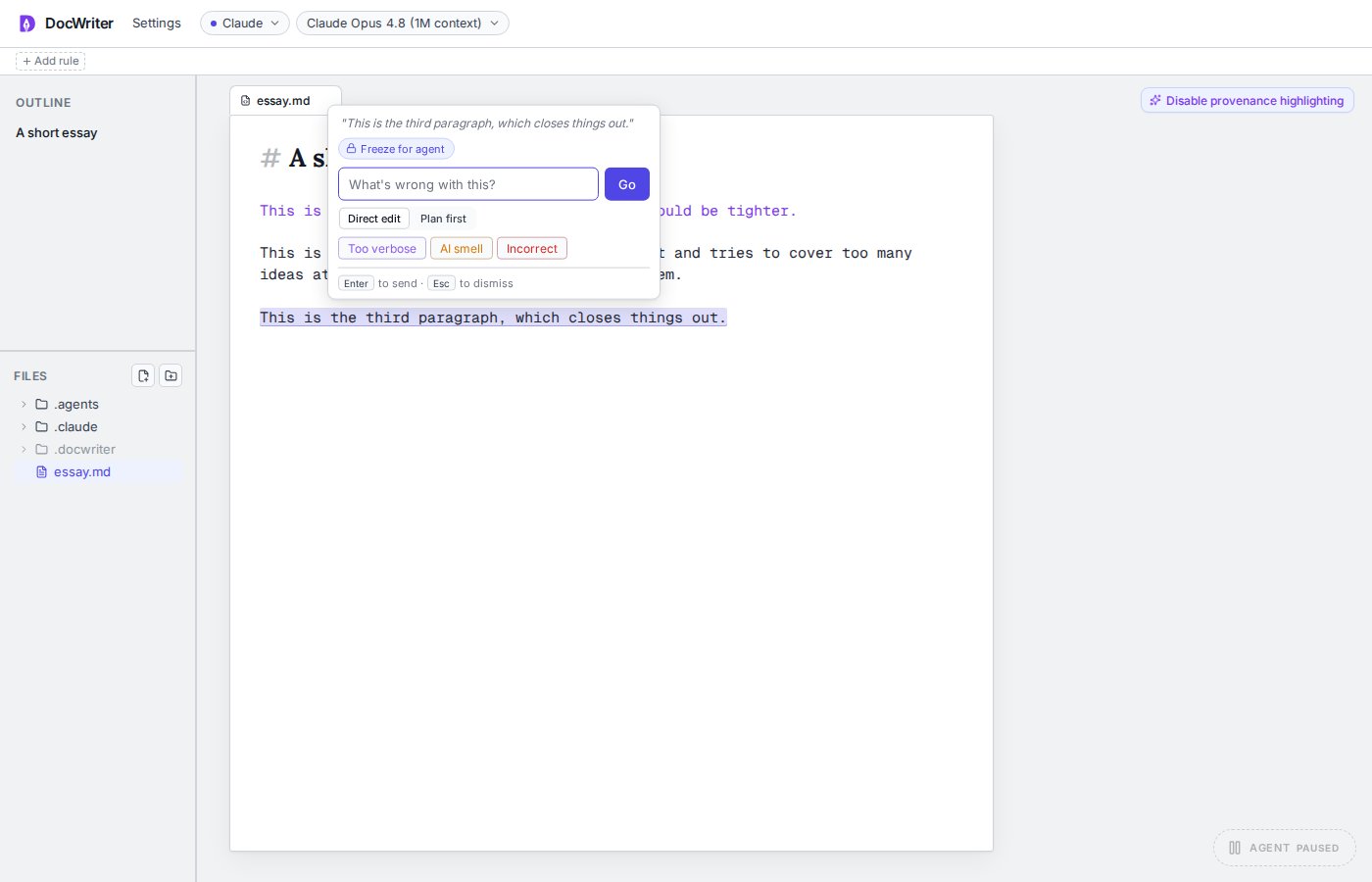
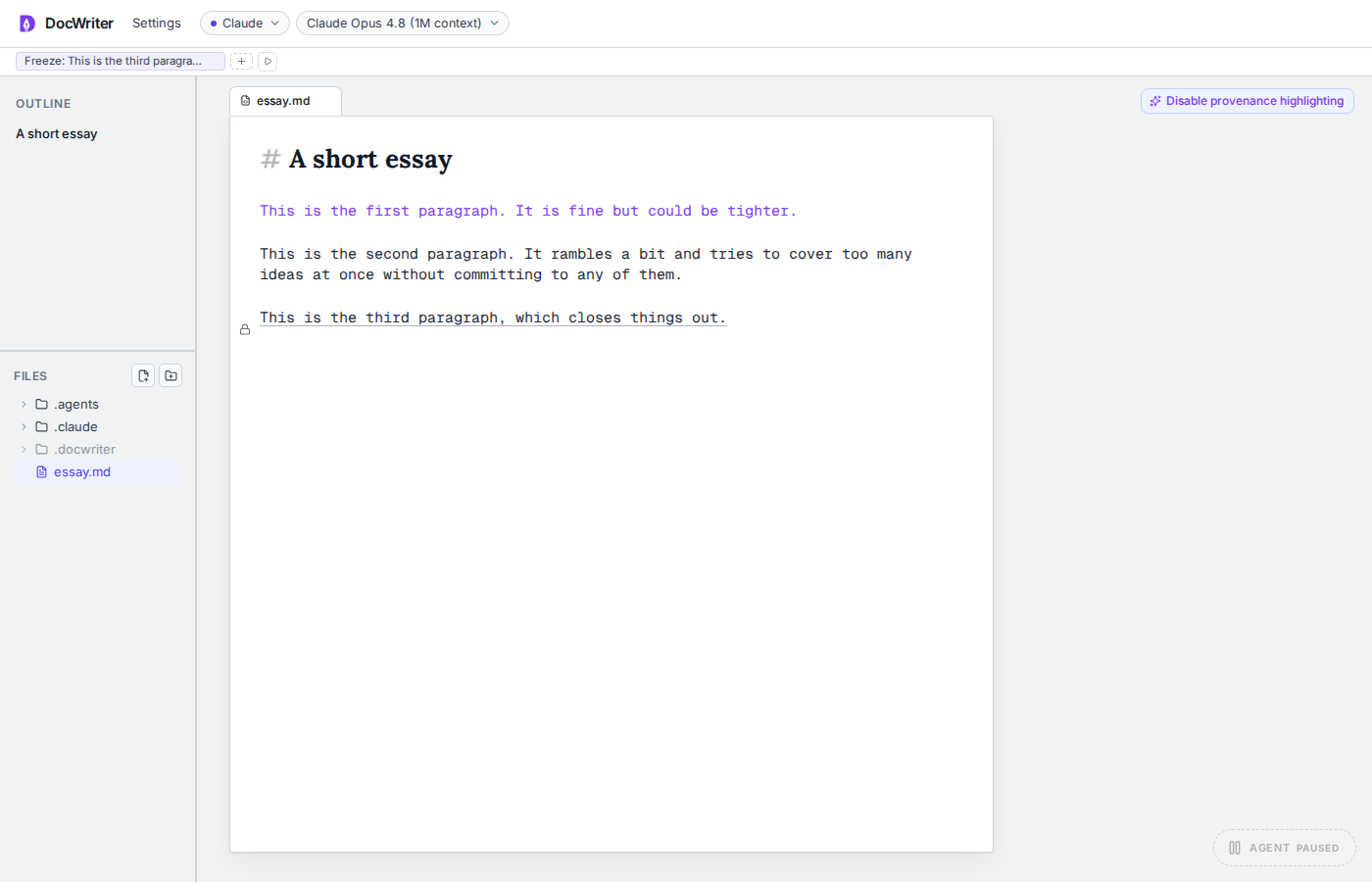
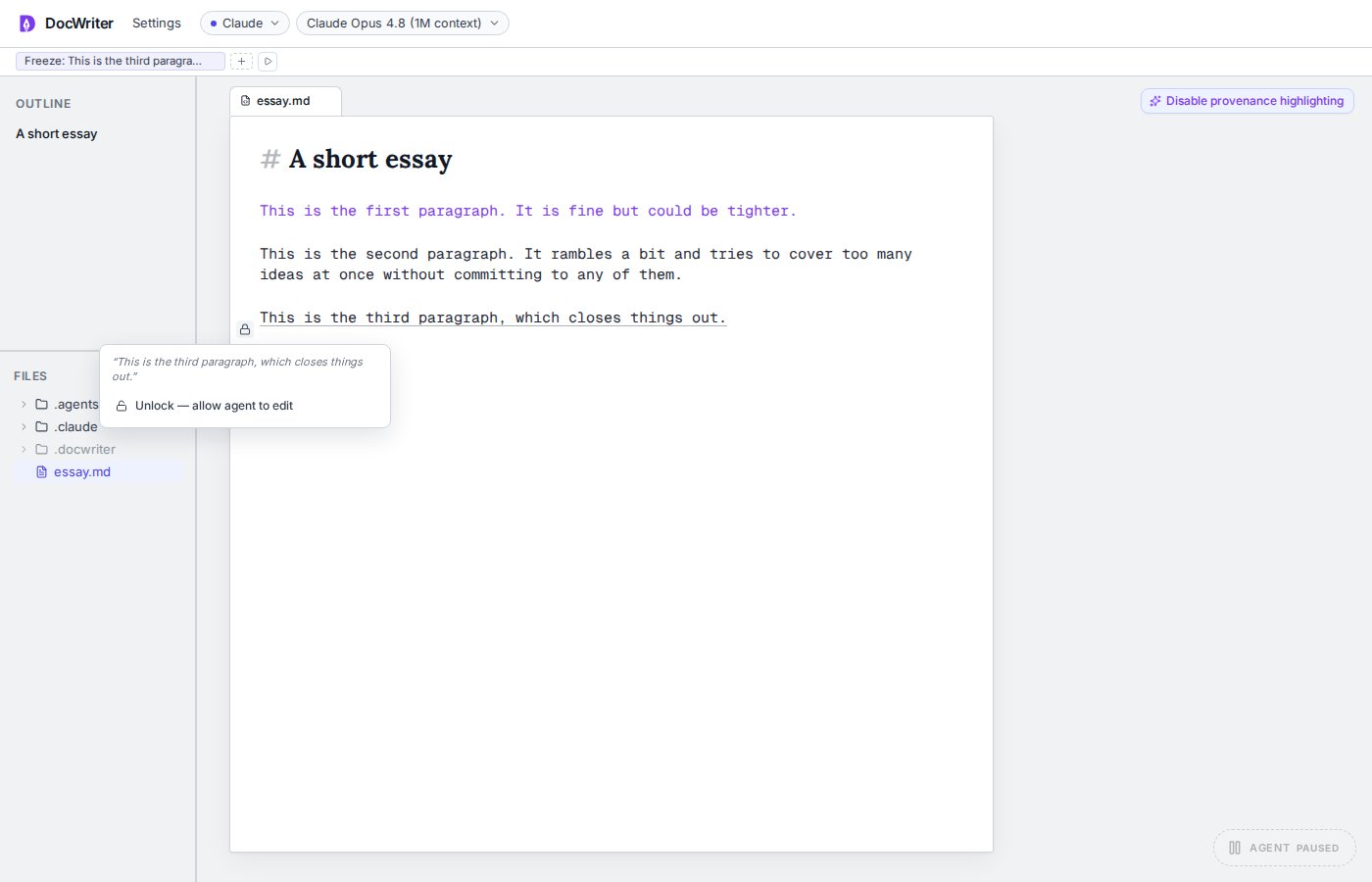
To stop the agent from editing a specific paragraph (or any selection), highlight the text and click Freeze for agent in the feedback popup. That stores a Freeze: … rule, underlines the passage, and places a lock icon in the left margin (text stays flush). The agent’s edit_doc tool rejects edits that overlap the frozen quote. Locking also wakes the agent with a message so it knows the passage is off-limits. Click the lock to open an Unlock — allow agent to edit menu (or remove the freeze rule in Writing rules). Unlocking persists the rule change and wakes the agent again.
A frozen paragraph with a margin lock and muted underline; provenance highlighting is on for contrast
Unlock popover from the freeze lock: Unlock — allow agent to edit

Editing or removing

Each rule in the panel has an edit and a delete affordance. Edits take effect on the next agent turn. Deleted rules are gone immediately. Freeze rules unlock the passage when removed.

Where to go next

  • Writing references. Voice samples that complement rules.
  • Skills. For more complex situational behaviors that don’t fit a single-line rule.