

- Click the Agent button in the history pane.
- Give inline feedback on a passage.
- Type a prompt in the chat popover.
- Choose a reviewer under Settings → Critique pass.
Auto-wake on idle
Three seconds after your last keystroke in the editor, the agent wakes on its own. It reads the open tabs, picks up any inline directives, reacts to anything you changed since the last turn, and proposes edits or comments based on the current autonomy level. Each new keystroke restarts the countdown, so the agent only runs when you’ve actually stopped. While the agent is rendering, the countdown is paused, so typing during a run does not queue another one.Cmd+Enter (macOS) or Ctrl+Enter (Linux/Windows) in the editor skips
the countdown and triggers a review immediately — unless the agent is
paused.
You can also click the Agent button at the top of the history
pane (the sleeping-cat icon). Clicking it wakes the agent on demand —
useful when you want it to read your files right now without waiting
for the idle timer or typing a prompt.

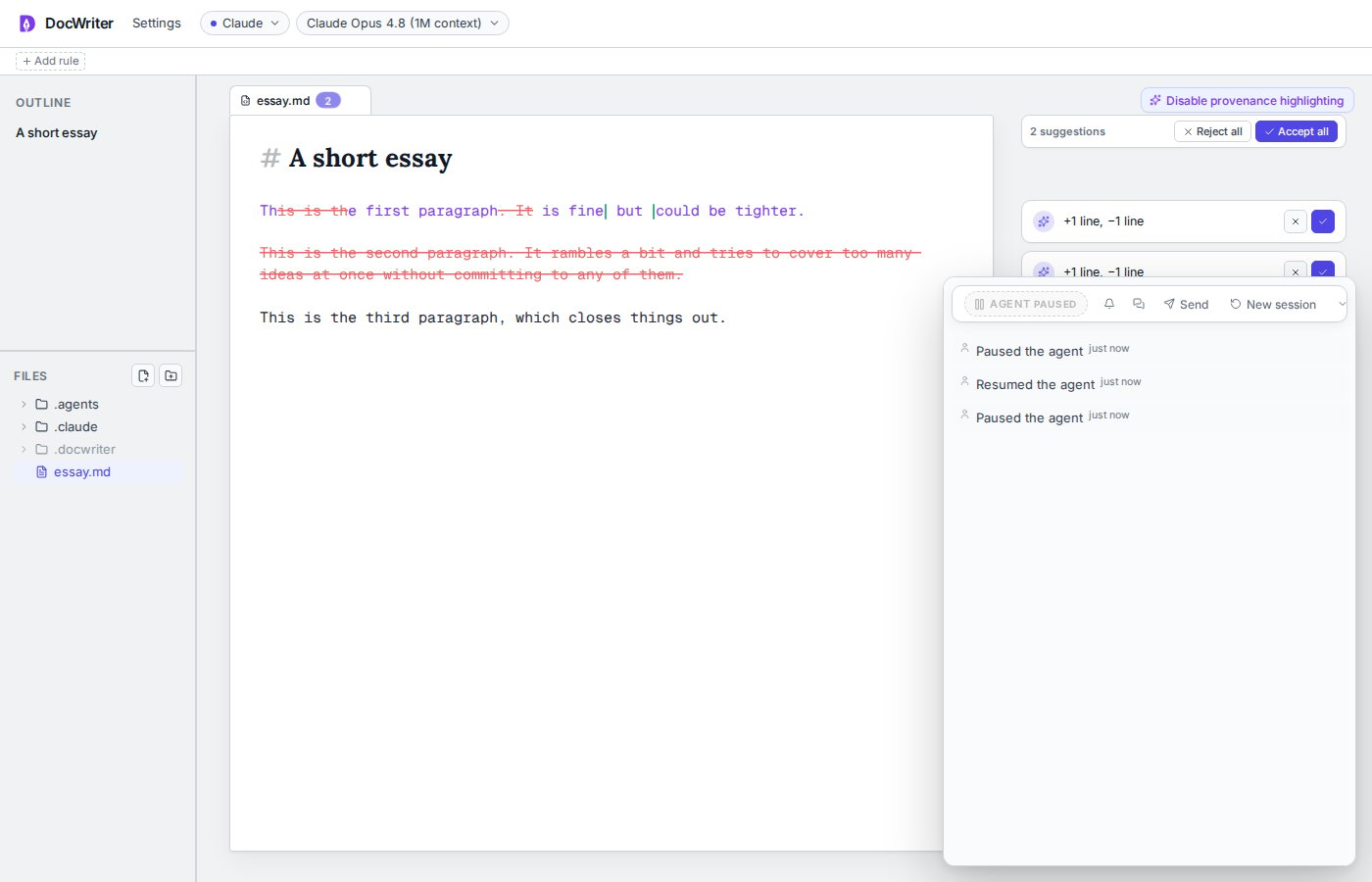
Pausing the agent
When you need room to think — refactoring a passage, drafting without interruption — double-click the Agent pill (the sleeping-cat button in the floating dock, collapsed or expanded). The pill shows Paused. While paused:- The 3-second idle auto-wake does not run.
- Clicking Wake up, sending a chat message, and
Cmd/Ctrl+Enterdo nothing. - An in-flight turn is cancelled, and any queued messages are dropped.
Inline feedback
When you select a passage with the mouse or keyboard, you can type your feedback without another click. Type what is wrong and press Enter. You can also use one of the quick actions. Read The feedback popup for details about its modes, quick actions, and keyboard controls.Questions from the agent
When the agent needs you to choose between several options, it pauses its turn. You then see a question card over the editor. For example, the agent may ask which of two tones you want. The agent may ask up to four questions on one card. For one question, click an option to send your answer immediately. For several questions, answer every question before you submit the card. You can see the number of completed answers in the footer. When you may choose more than one answer, select the checkboxes you want. The agent receives your choices in a list separated by commas. The agent waits up to 15 minutes for your answer. If you do not answer in that time, the agent continues without your input.Sending a typed prompt
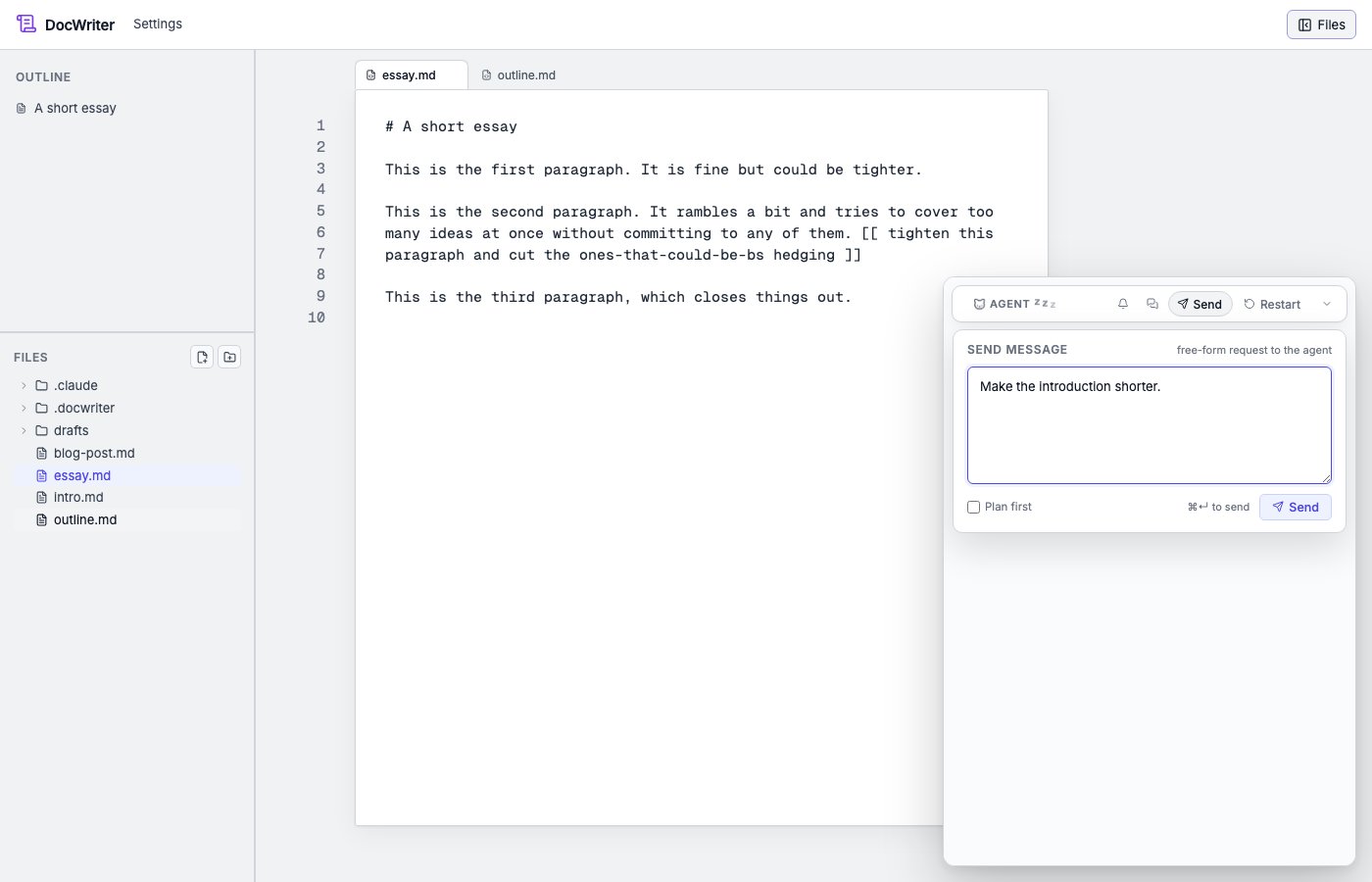
For things that don’t anchor to a spot in the document (“research X and pull citations in,” “restructure across files,” “summarize what changed since yesterday”), open the chat popover with the Send button in the top-right of the editor. Type a message and submit withCmd/Ctrl+Enter (or the Send button).
Running a critique pass
Use a critique pass when you want a reviewer to read the active file with a specific goal. Choose Settings → Critique pass, then choose a reviewer. If the agent is already working, it runs the critique pass after the current turn. The reviewer reads the whole active file before leaving feedback. It ranks the most important problems and leaves no more than six findings. If the reviewer does not find a problem, it leaves one comment about what works instead of inventing a finding. You can choose one of four built-in reviewers:
To create your own reviewer, choose Settings → Critique pass → New
reviewer. Give the reviewer a name, mascot, color, and prompt. In the
prompt, say what the reviewer should check and what it should leave
alone. After you save the reviewer, you can choose it from the same
menu as the built-in reviewers.
Every reviewer writes in the language of the document and follows your
writing rules. A reviewer does not keep a separate conversation or
remember earlier passes. Run another critique pass after you revise the
file if you want the reviewer to check it again.
The reviewer leaves each finding as a comment on the
relevant passage. When a small change can fix the problem, the reviewer
may also propose an edit. With track changes on, you can accept or
reject the edit through the normal review
controls.
What the agent sees
When you send a prompt, the agent receives:- The file paths of every open tab (which is active, which changed since it last looked).
- A diff of any tab that changed since the last turn.
- Your writing rules and writing references.
- Any open comment threads it might want to respond to.
read_doc on the files it
needs. This keeps prompts small and lets the agent decide what to look at.
Multi-tab work
If you have several files open, the agent sees all of them as candidates to read or edit. A typical multi-tab prompt:Move the example fromThe agent reads both files, writes the new section intooutline.mdintoessay.mdas a new section.
essay.md, and
optionally removes it from outline.md. Each tab gets its own pending
review.
Model selection
In the menu bar, the Settings menu has a Model submenu:- Opus. Slowest, most capable. Use for restructuring and long-form rewriting.
- Sonnet. Middle of the road. Good default.
- Haiku. Fastest. Good for short, local edits.
--model opus on the command line to set a default for
the session. The CLI flag takes precedence over the menu selection.
Autonomy levels
Settings, then Agent behavior, opens a panel with an autonomy selector:
The autonomy level rewires the agent’s prompt; it does not constrain its
tool access. Track changes is still on by default, so you stay in
control of what lands.
Track changes
The same Agent behavior panel has a Track changes toggle. When on (default), agent edits land as pending reviews you accept or reject. When off, agent edits land directly in the document. With track changes off, the agent’s edits are still tagged as agent-origin, so the editor’s undo stack still groups them separately from your own typing.Cancelling a turn
To stop the agent mid-run, click the agent pill at the top of the history pane. It returns to the sleeping state. Any pending review the agent already proposed remains. Cancellation only stops further tool calls.Where to go next
- The feedback popup. Give feedback on a selected passage.
- Inline directives. Leave
[[ ... ]]notes in the prose for the agent to pick up. - Reviewing edits. Accept and reject in detail.
- Delegating tasks. Longer-running, multi-step work.
- Comments. When the agent leaves feedback instead of editing.