

.txt, source code, anything that’s not binary.
Binary files (images, PDFs) open in the preview
window instead of as an editor tab.
Opening files
Click any file in the file tree (lower-left) and it opens as a tab in the editor. The tab bar runs across the top of the editor surface.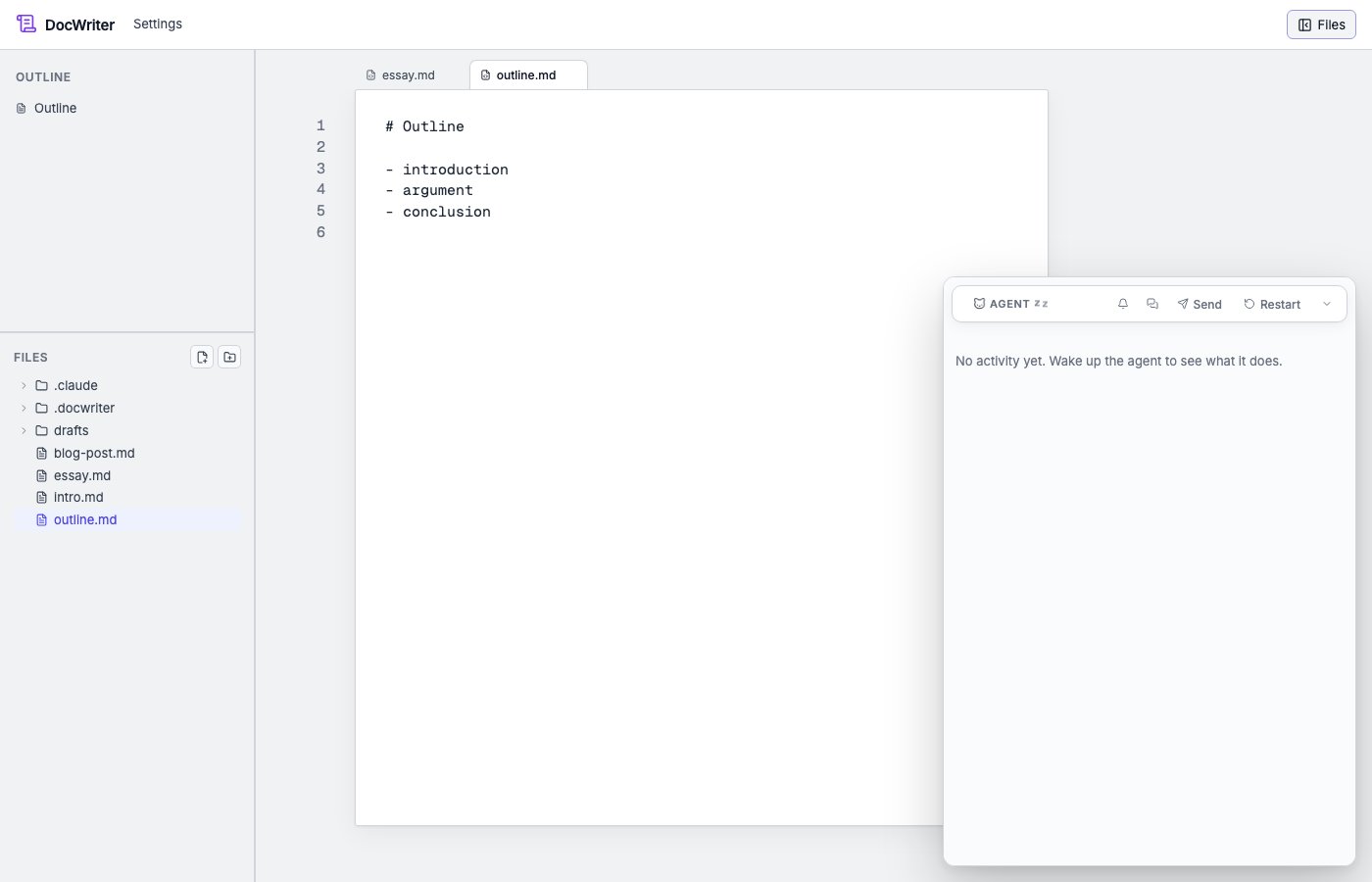
× (or
middle-click).
The file tree hides a few names that are usually noise: .git,
node_modules, .svelte-kit, build, .DS_Store. .docwriter/
(DocWriter’s own state) is intentionally shown — its contents
(hooks.json, state.json, etc.) are often the target of rule or
hook edits.
Per-tab state
Each tab keeps its own:- Undo/redo history. Cmd/Ctrl+Z in one tab doesn’t affect another. Agent edits and user typing are tagged with separate origins, so undoing one doesn’t undo the other.
- Pending agent reviews. A small dot on the tab title indicates an unaccepted pending review on that tab.
- Scroll position, selection. Restored on tab switch.
Tab order and persistence
Tab order is stored in.docwriter/docwriter.db. Reopening DocWriter
restores the previously-open tabs in the previous order.
Creating, renaming, deleting
The file tree has affordances for all three: the+ buttons at the
top, and right-click on a file/folder for a context menu. Renaming a
file updates any open tab pointing at it; the tab title and the file
on disk stay in sync.