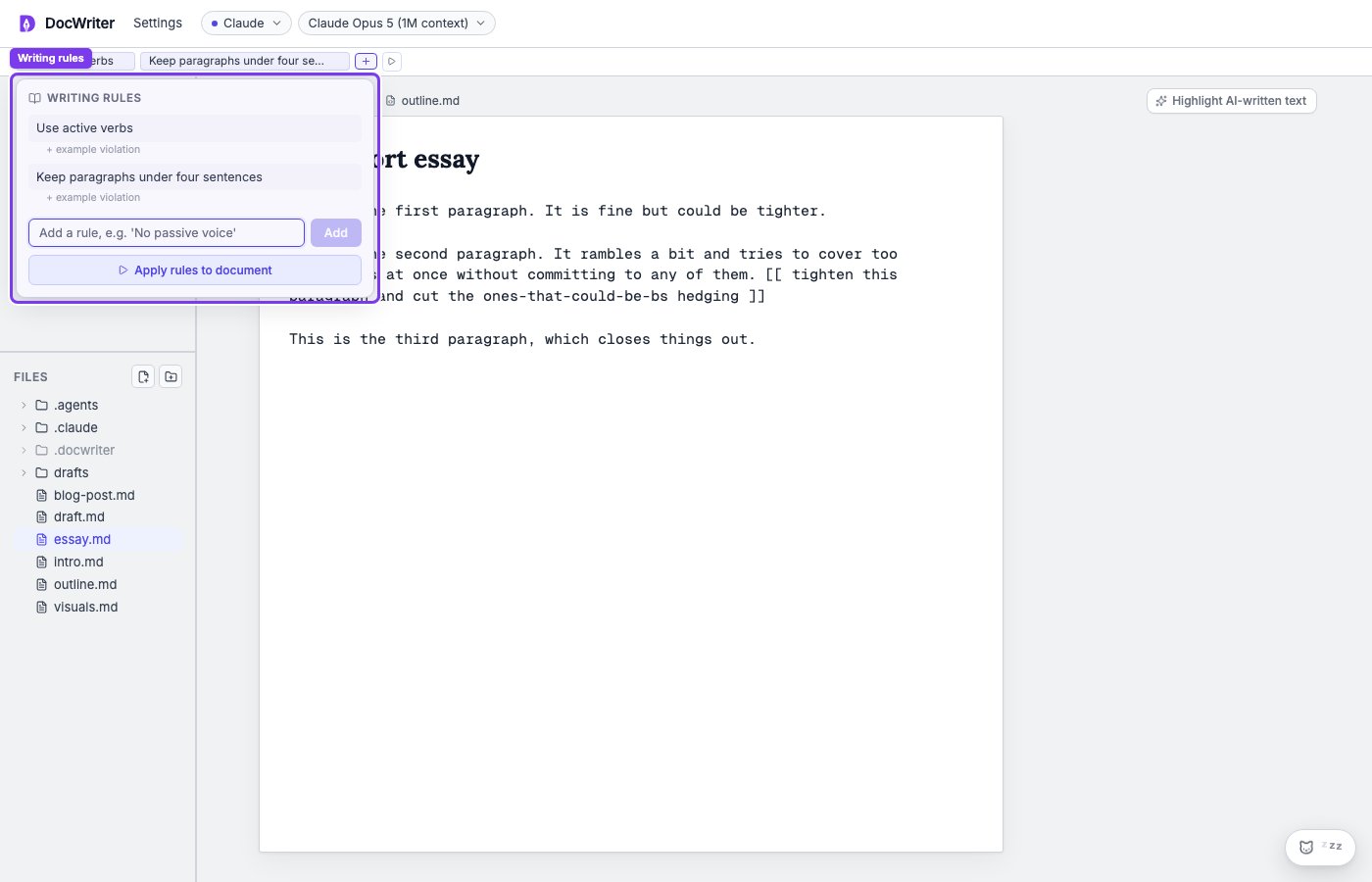
Writing rules
Save a short instruction that the agent should follow across requests, such as a required term or heading style.
Style guidance
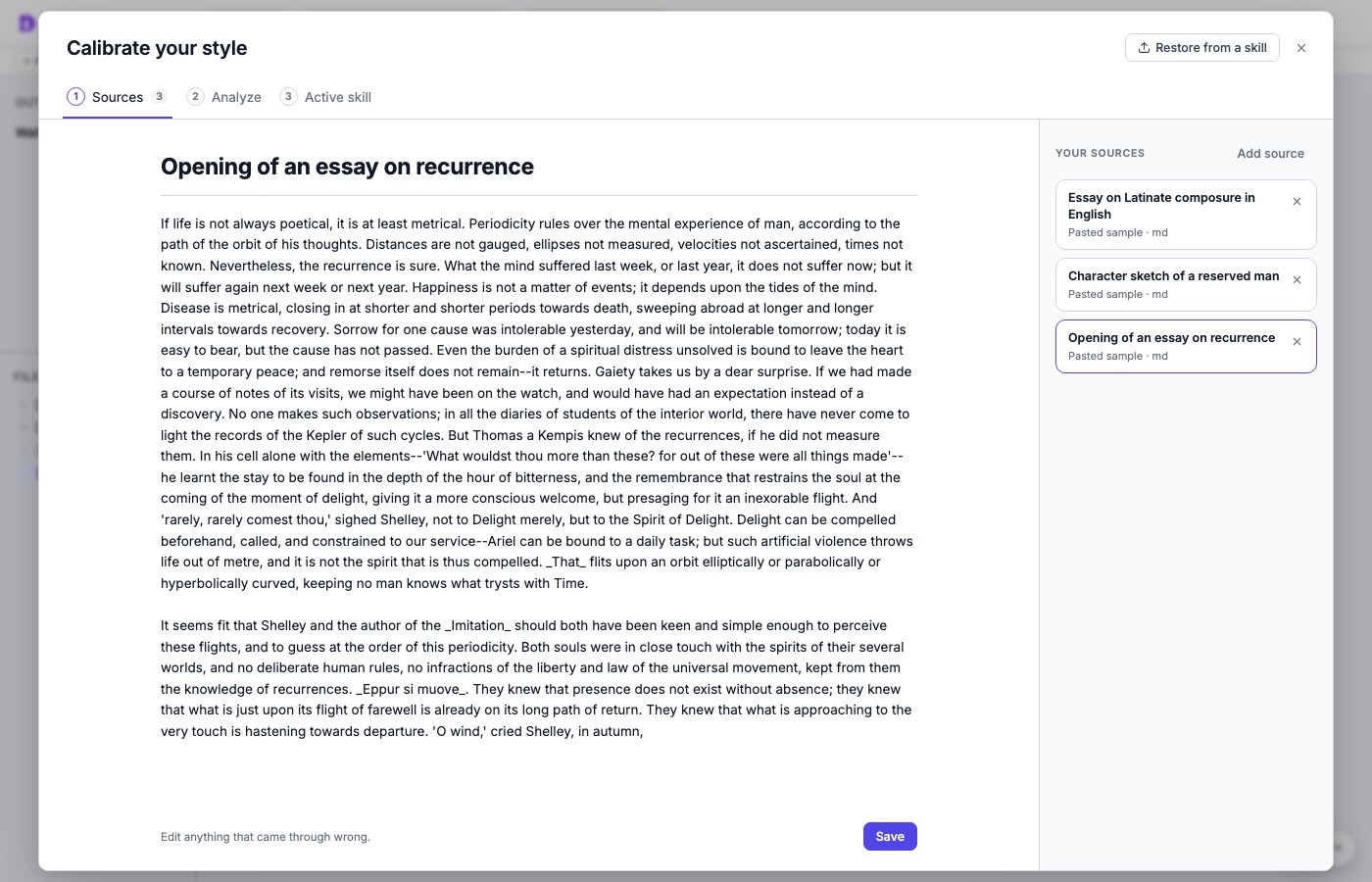
Paste your writing, run the style analysis, and finalize a skill the agent follows for your voice.
Skills
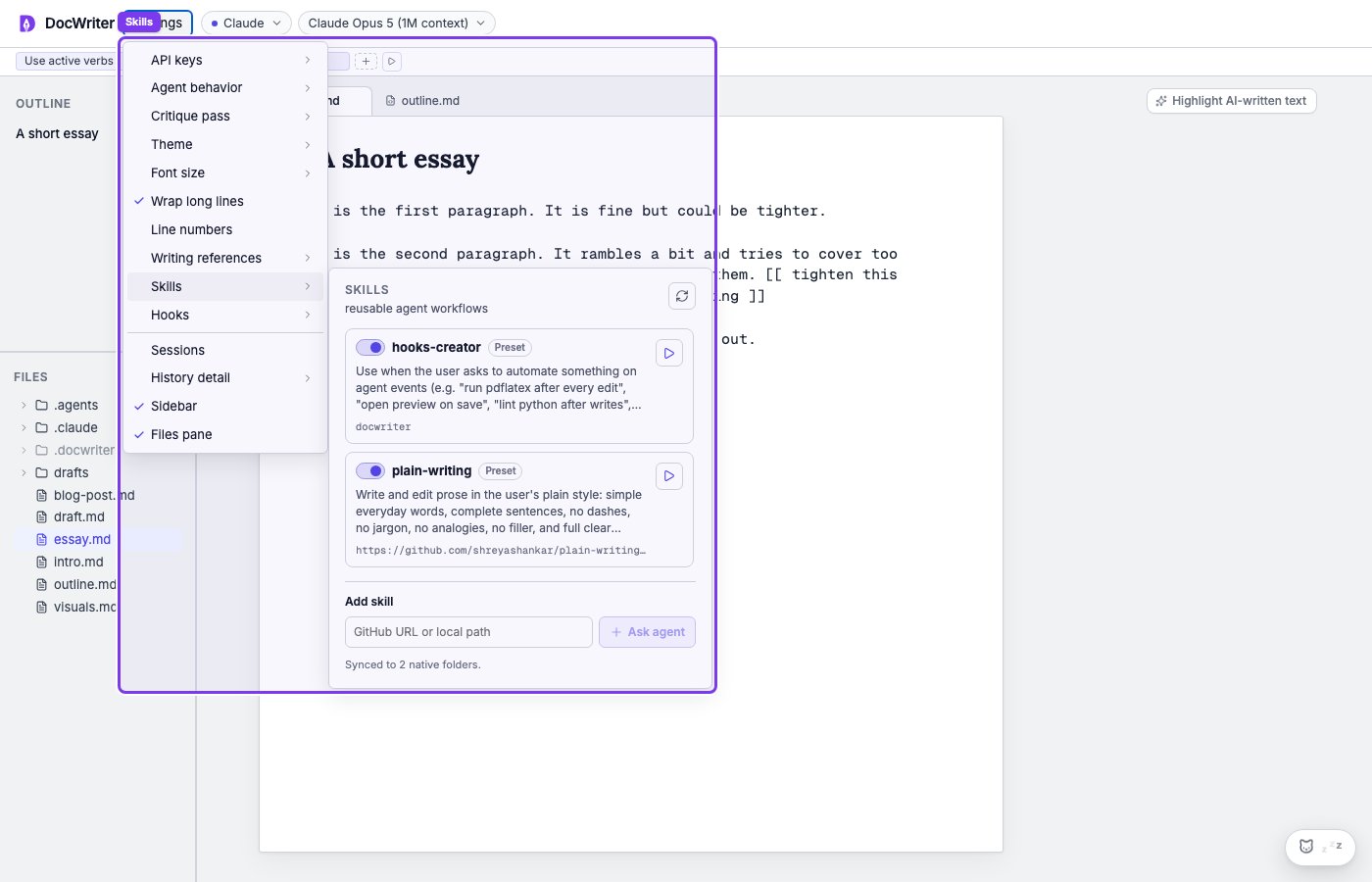
Add a reusable procedure that explains how to complete a specific kind of work with several steps.
Choose the right type
- Use a rule for a short instruction, such as a required term or citation format. Enabled rules apply to your later requests.
- Use an intended audience when you want to name the reader, such as busy managers or first-year students.
- Use style guidance when you want the agent to learn your voice from several of your passages and follow that skill on later requests.
- Use a skill for a task with a reusable procedure, such as reviewing prose or building a preview. You can run the skill directly or ask for it in Chat.
Set the intended audience
Open Settings, then Intended audience. Write who you are writing for in your own words. For example: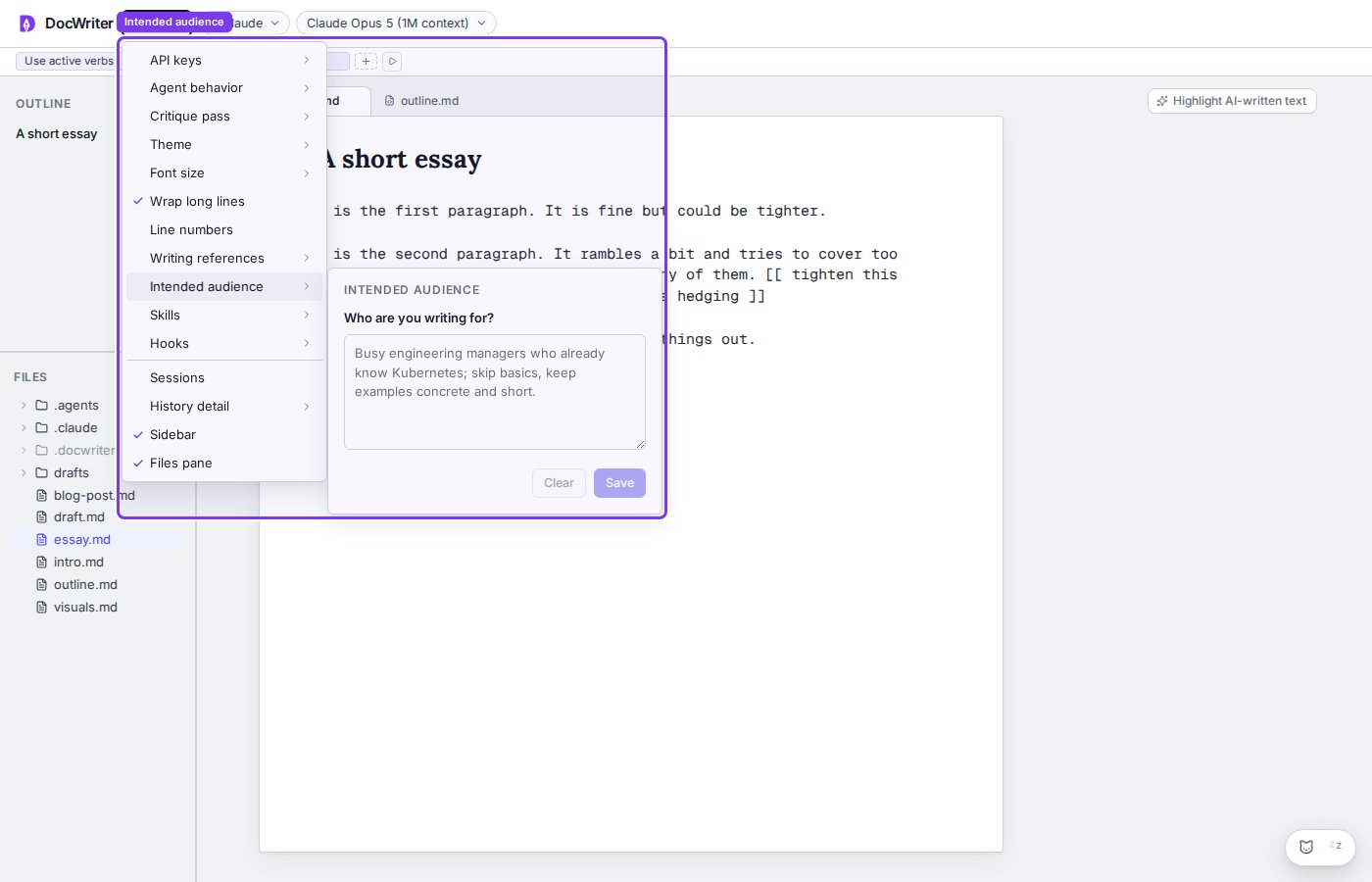
Find the controls
You can find writing rules in the toolbar above the editor.