Read a proposal
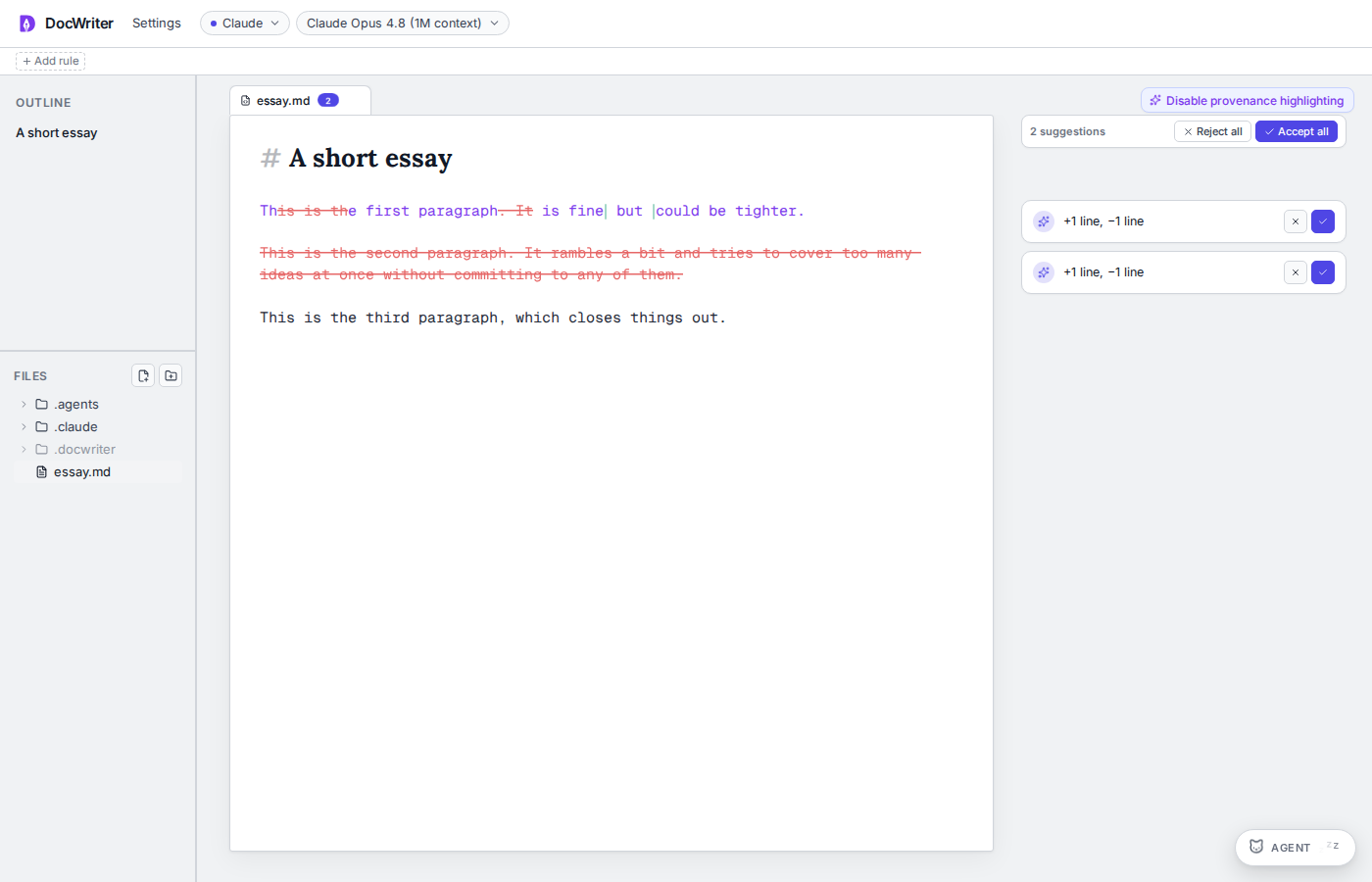
You see each suggested edit beside its explanation. You can identify proposed removals by the red strikethrough, proposed additions by the green text. You can read the comments without opening each card. Click a card, its review button, the red text, or the comment count beside the text; you will see the suggested additions and the Accept and Reject buttons. Click elsewhere in your draft to hide the additions; your original text will still have a strikethrough.Review one proposal, accept it, then reject another.
Accept or reject
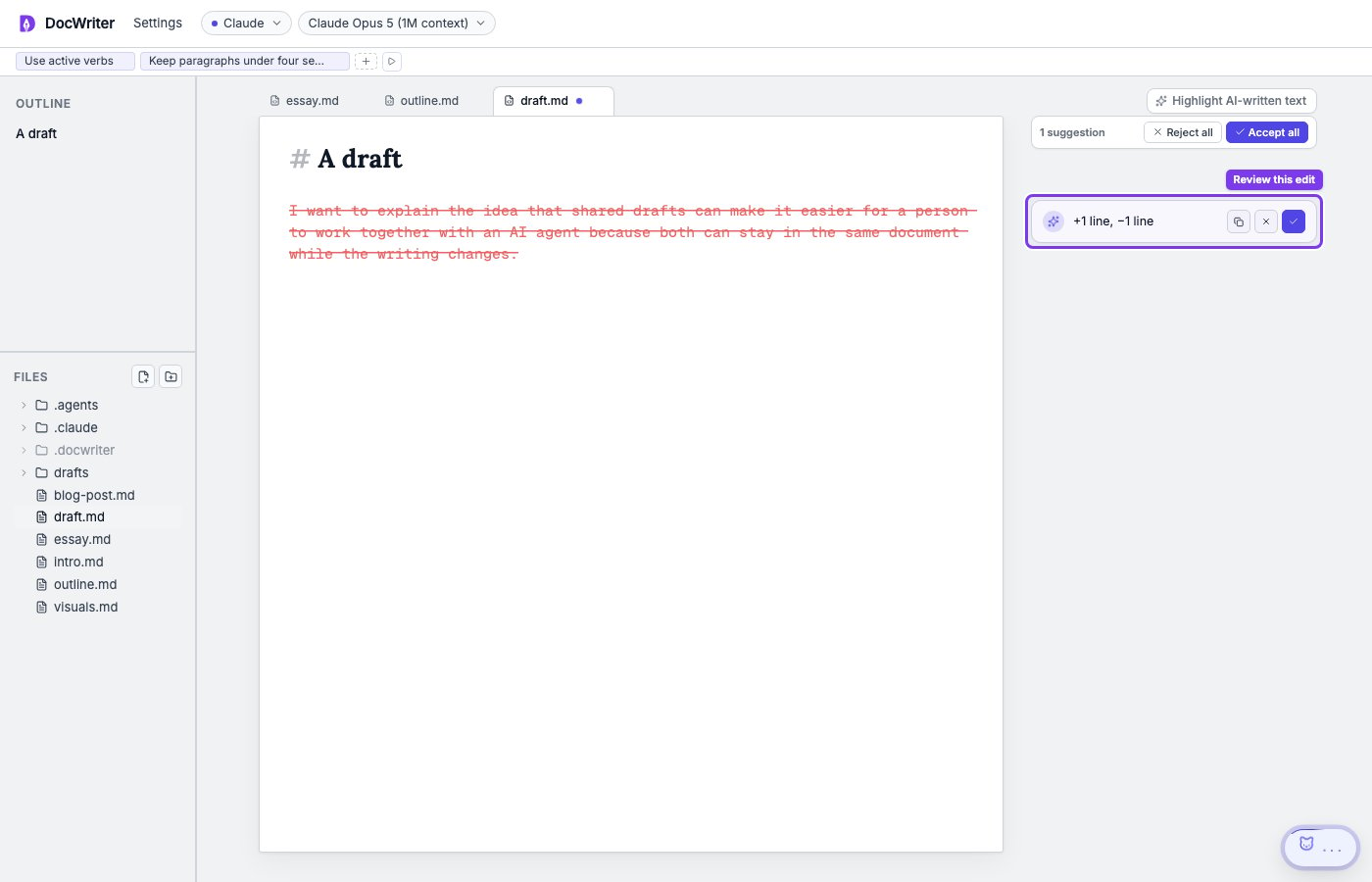
Click a comment card and choose Accept or Reject. If you accept, you keep the additions and remove the struck text; if you reject, you keep your original text. You also close the comment thread with either choice; you can reopen it to continue the discussion. Use Accept all or Reject all to review every pending edit in your current tab. Your other tabs will be unchanged.