

Open a PDF
Click a PDF in the file tree to open it as a read-only viewer tab inside DocWriter. The PDF viewer supports page navigation, search, zoom, and the PDF sidebar. LaTeX projects can also use SyncTeX, which links a place in the source file to the matching place in the PDF.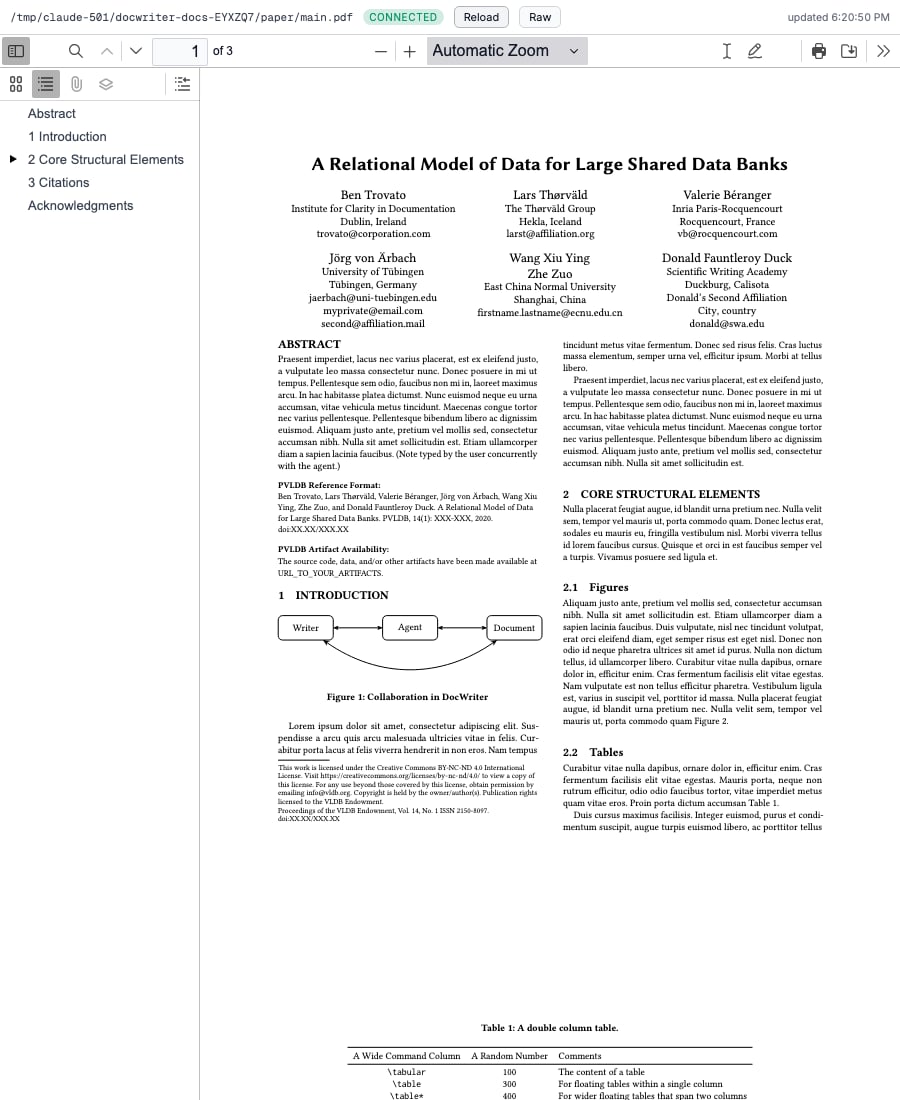
Preview generated output
When the active source file has matching output, use Preview window to open it in a separate window. Use the button beside it when you want a resizable split preview next to the source. You can preview PDF, HTML, SVG, common image formats, Markdown, and plain text. On the preview page, choose Raw to open the output in a normal browser window.Open a split preview, resize it, and reload changed output.